Your first film
Start with 20–50 photos/videos in one Immich album and request 30 seconds. A short output does not limit preparation: the album bounds the input too. Use ordinary JPEGs and short supported videos you own, without archived, hidden or forwarded media for this trial.
This assumes the prebuilt Basic installation: one app container, two CPU cores, 4 GiB for this app in addition to Immich and the host, and 25 GB for app data plus images and finished output. No GPU, reader, caption server, generated music service or cloud account is needed. Use the minimum read key.
Prepare and check first
From the Compose project directory, after the image pull and container start:
docker compose exec immich-memories immich-memories models fetch
docker compose exec immich-memories immich-memories preflight
Continue when Immich authentication, pinned encoder/WordNet assets and writable output pass. Basic can skip the reader, captions, GPU and generated-music checks. Missing home coordinates can warn without blocking this album. Fix connection, required-model or storage failures before Cut; a count of warnings alone does not tell you whether the install can run.
Pick the trial album
- In Immich, select 20–50 existing supported assets and add them to an album named First film trial. This groups the originals; it does not copy or edit them. Check its count in Immich before proceeding. Do not add more pictures until the trial finishes.
- In Immich Memories, open Memory, choose Album under Memory type, then choose First film trial. The album dropdown shows its asset count. Stop if it exceeds 50.
- Open Length and pictures. Set Length in minutes to 0.5. Include photos and Include Live Photos are on by default; leave them on. Leave optional services and upload disabled. The supported pool can be smaller than the album count after exclusions; the album remains the upper bound on its selected entries.
The album needs enough usable moments for a film. If exclusions leave too little, replace those entries in Immich within the same 20–50-item bound and make a new cut. Do not expand to an entire month to diagnose a first-install problem.
Cut
Press Cut. The app prepares the pictures and builds the edit. The first cut takes longer; compatible preparation results are reused on later cuts. You can reload the page while it works; return to Memory to follow the active cut.
Read the cut
The finished cut is a run under Runs; the page may take you to it. If it doesn't move and returns to the empty form (this happens after a reload during the cut), open Runs. The contact sheet shows the shots in playback order. Open one to see it larger, watch its video interval and read why it stayed. Stories groups the same shots by story.
Favourites help a moment earn its place. Videos often carry it better than a still. Quiet weeks can be empty: the film goes short instead of padding. How it chooses explains this without requiring you to configure it.
Fix it
For a wrong shot, open its inspector. Remove from this cut, trim with Start here and End here, or choose Use this picture instead. Press Save revision.
For a missing shot, open Pool, tick the picture and press Preview with these choices. These edits make a revision of this cut; they do not rerun selection.
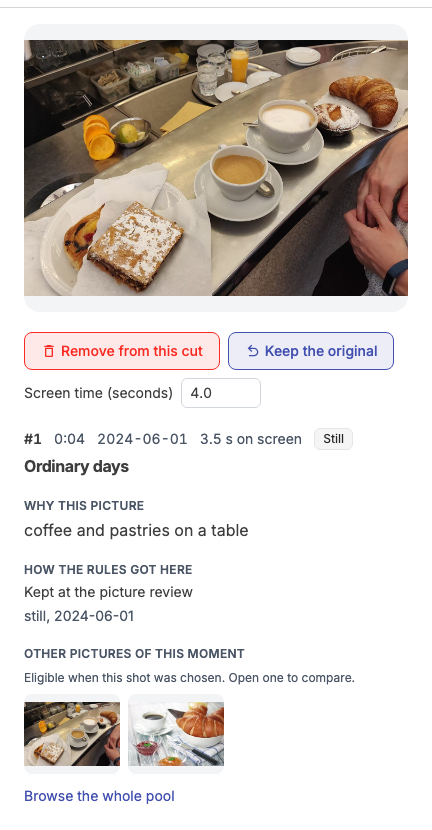
Never use is different: it excludes the picture from future films. Undo that decision before trying to add it again. Improve a cut covers lasting changes.
Render and watch
Under Render, pick the cut or your revision in What to render, then press Render. Leave Upload the film to Immich off. Bundled music is enough for this trial.
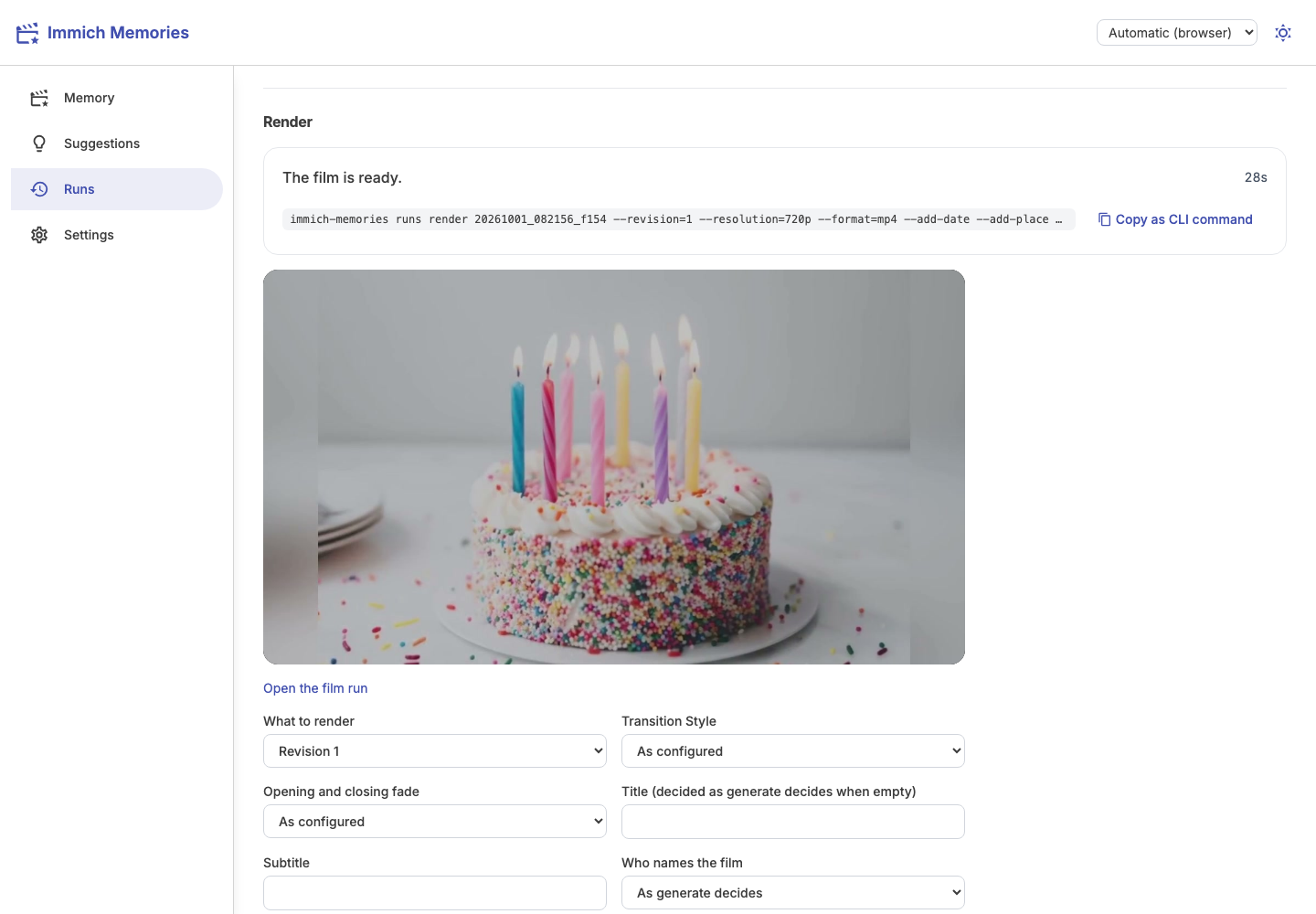
On Docker, local films land in ./output. If you select Upload the film to Immich, a successful upload removes the local copy. This also happens for CLI and automatic uploads. The run remains in Runs, with its link to Immich. Leave upload off when you want the file locally.
Play the local film through to the end with sound. Success means a playable MP4 in the run's
player, a working Download, and the file in ./output on the Compose host (/app/output
inside the container). Record the actual duration; selection may produce less than the requested
30 seconds when usable material runs short. An empty or failed render is not success.
Progress and recovery
| Phase | What you see | Complete when |
|---|---|---|
| Image pull | docker compose pull layer progress in the terminal | Pull exits successfully; docker compose up -d starts the app |
| Model preparation | models fetch downloads or verifies pinned files | Command succeeds, then preflight passes the required checks |
| Input preparation and cut | Memory page stage, picture counts and elapsed time | “The cut is ready.” and a saved run opens |
| Review | Shots, Pool and saved revisions on the run page | You select the revision you intend to render |
| Render | Render progress on the run page | “The film is ready.”, player and Download |
Use docker compose logs --tail=100 immich-memories for server/startup errors. Generation
runs as a separate job: use its progress/error panel and the run's Copy report, or
immich-memories report RUN_ID, for run diagnostics. A first job may have only a stage estimate.
The measurements separate warm tests from cold preparation and rendering;
no fixed first-film time is promised. A real month's first preparation can take hours on a NAS.
Press Cancel on an active job to cancel it; cancellation can wait for active native work. Cancelling marks the run Cancelled and clears its scratch folder; the saved cut stays, so Render again still works. Reloading the browser does not cancel it. Return to Memory for the active cut or Runs for its saved cut/render. Restarting the app/container does not resume a vanished job: the run shows as Interrupted after the next start. Rerun Cut if no cut was saved, or render the saved revision again. Compatible picture facts remain cached. Keep the store and run files.
| Problem | Diagnostic and next action |
|---|---|
| Immich unreachable or key rejected | Run preflight; correct the container-reachable URL and read permissions in .env, then docker compose up -d |
| Missing or wrong model pin | Run models fetch again, then preflight; see offline preparation if downloads are blocked |
| Output not writable | Fix UID/GID ownership of this project's output using the NAS permissions recipe, then preflight |
| Memory pressure or exit 137 | Check docker stats --no-stream and container state; keep Basic/1080p and give this app its own 4 GiB budget; see render budgets |
| The cut hangs on thumbnails while preflight is green | The host's network MTU is below Docker's: set a lower Compose network MTU |
| Interrupted work | Inspect the job error and saved run, then retry Cut or Render as above; diagnostics explains logs and reports |
For a deliberate fresh trial or uninstall, use the scoped lifecycle procedures. They are separate from retrying an interrupted film.
Next
After the small trial, choose Monthly Highlights, a year and a month. Record its input count and actual film length separately. The CLI line, next to the album one:
immich-memories generate --memory-type monthly_highlights --year 2021 --month 5 --include-photos
Replace the year and month with your own. That larger run has a different preparation cost; the small trial does not validate a full month or year.
Set home and people, then choose another kind of film. Titles, format and music can wait until you like the cut.
The same on the CLI
immich-memories generate --memory-type album --from-album "First film trial" --duration 30 --include-photos --no-render
This saves a cut for review in Runs. Without the UI, render the saved cut from the CLI:
immich-memories runs render RUN_ID
generate --no-render prints the run id; immich-memories runs list shows it later. Without an id, runs render takes the most recent completed run. Upload stays
off unless you pass --upload-to-immich. Dropping --no-render from generate selects and renders
in one go. Keep upload.enabled: false in Settings/file/environment, including for CLI runs.
On Docker, prefix either command with docker compose exec immich-memories (no sudo needed
when your user is in the docker group). On Kubernetes:
kubectl exec -n <namespace> deploy/immich-memories -c immich-memories -- immich-memories runs render RUN_ID
CLI recipes include reviewing a saved cut before rendering. Where the finished file lands and its naming pattern are in output and rendering; for a month-or-year render that outlives your terminal session, see the CLI reference.
On Kubernetes, copy only the film, not the whole output volume:
kubectl cp -n <namespace> -c immich-memories <pod>:/app/output/<run folder>/<name>.mp4 ./film.mp4
Portrait or landscape
The film follows the pictures: if more of the chosen clips are portrait than landscape the canvas
is portrait (a month of phone shots gave 1080x1920), otherwise landscape (the album trial gave
1920x1080). Only a tie falls back to output.resolution. To force it, pass
--orientation landscape to generate or runs render.