Edit the cut
Review a cut before rendering it. Changes to that cut become a saved revision; choices such as Never use apply to future films too.
Remove, trim or swap
Open a shot in the contact sheet:
- Remove from this cut takes it out of this film.
- For a video, Start here and End here choose the interval to play. The preview loops the chosen interval; seek before or after it to move an edge outwards.
- Under Other pictures of this moment, choose a replacement and press Use this picture instead. Keep the original undoes a swap.
Press Save revision, then select that revision under What to render. The app renders those edits without choosing the shots again. Undo walks back an edit; Discard changes drops the unsaved changes.
Tick and untick
Open Pool to see the pictures the cut considered. Tick a missing picture, untick one you do not want, then press Preview with these choices. This saves a revision in time order, with the length adjusted to your choices.
A pool tick can include a picture held for family viewing: you have reviewed it yourself. An explicit tick also overrides Never use for this revision. The tile reminds you of that persistent decision; later automatic cuts still honour it.
To steer a new cut with the CLI, use generate --include ASSET_ID or --exclude ASSET_ID. New-cut inclusions still pass the sharing checks. Exact inclusion rules.
Star it in Immich
Favourite the pictures that matter before cutting. A favourite wins over other frames of its moment, but does not guarantee a place in every film: sharing and the available length still matter. Exact favourite rules.
Pick who it's for
Set Who may see it in the brief:
| Audience | Use it for |
|---|---|
| Just us | The household, including private moments. |
| Family | Family viewing, with private moments kept out. The default is As configured, which uses defaults.sharing (Family unless changed). |
| Shareable | Wider sharing, with the strictest checks. |
Review the film before sending it. These checks can miss or misread a picture. Sharing rules and limitations.
Your word on a picture
A held picture says why and offers Clear hold. Review the picture, then choose the audience allowed to see it. Clearing is per picture; the app does not clear holds on its own.
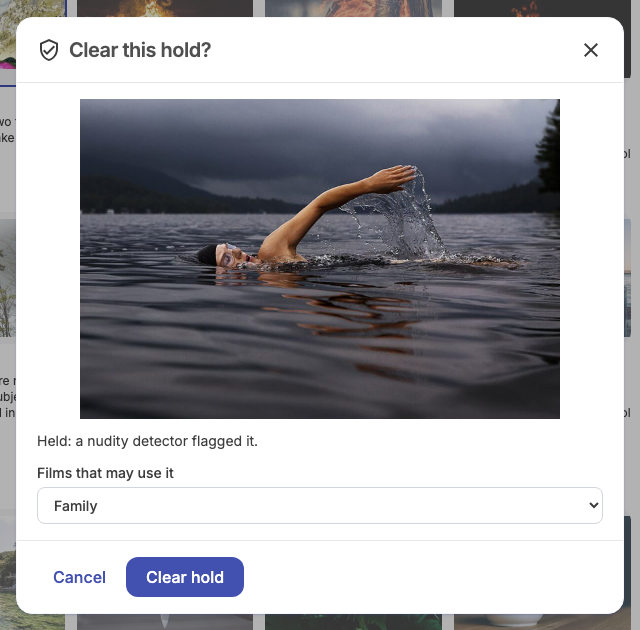
Never use excludes a picture from future automatic cuts; an explicit pool tick can still include it in a saved revision. Undo forgets either decision. To remove a picture from just one film, edit that cut instead.
These decisions last across sessions and are shared by the UI and CLI. A Live Photo decision covers its clip too. Picture decisions on the CLI and exact hold rules.
Tell it who's who
Correct wrongly recognised faces in Immich. In Settings > People, confirm your people and their relationships; only confirmed roles count. Set home so trips have a starting point. People and home walks through this.
Fine-tune selection
Start with favourites, confirmed roles and home before changing thresholds. For a result that still feels wrong, use Improve a film. Exact family, burst and timing rules live in Selection internals.
Read why
Open a picture's explanation in the contact sheet or pool. The CLI gives the same reasoning:
immich-memories runs why ASSET_ID
Saved runs explains how to inspect an earlier cut or render it again.