Use the web UI
The browser gives you a contact sheet to review and edit before rendering. Every cut and render uses the same engine as the CLI; Copy as CLI command gives you the command behind the job.
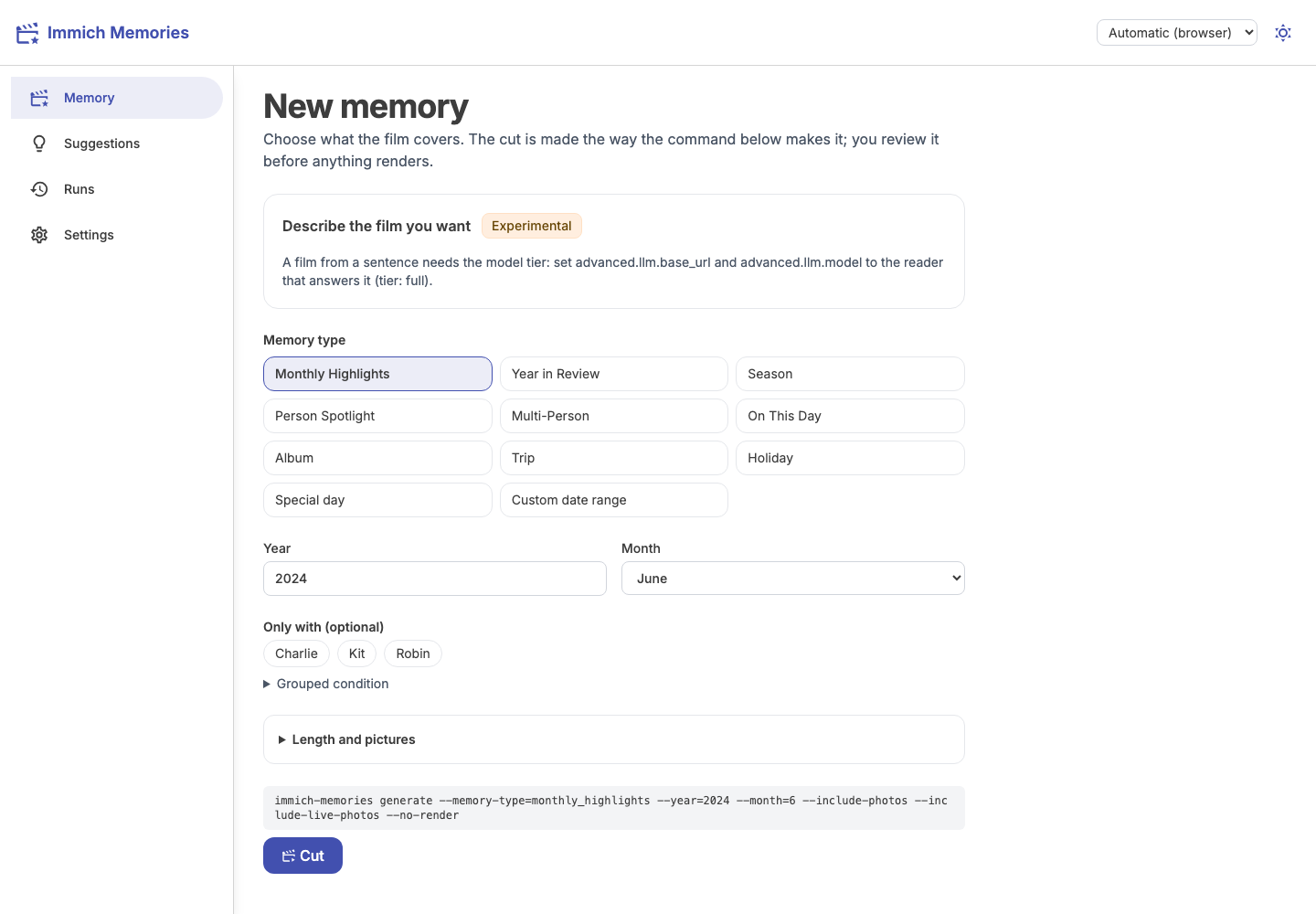
Where things are
| Page | Use it to |
|---|---|
| Memory | Choose a film and start its cut. |
| Runs | Review cuts, save revisions and render films, including automatic runs and failures. |
| Suggestions | See the memories automation would make next, and why. |
| Settings | Change configuration and confirm your people. |
On a phone, the navigation is at the bottom. Theme and interface language are remembered in that browser. The interface language does not change the film's language: titles and languages.
Download models on first start
If pinned models are missing or fail their checksum, Memory and Settings show a Download models card. It lists the files needed by your configured tier, their approximate download sizes, source hosts and SHA-256 pins. The optional Docling snapshot shows its fixed revision instead. Hosts can redirect downloads to their CDNs.
Press Download models to run the same immich-memories models fetch command the terminal
uses. Nothing downloads from merely opening the page. The job shows the current artifact,
can be cancelled and survives closing the tab. A failed download keeps its error visible;
retrying reuses files that already match their pins. Settings changes refresh the list; if another tab changes the download plan, the server
asks you to review it again before starting. This action does not change
allow_model_downloads or enable the reader.
The job downloads model weights and WordNet, not photos from your library. It still needs a writable model cache, enough free space and access to the listed hosts. Optional model runtimes must already be installed; downloading their weights does not install Python extras.
Make and adjust a film
Your first film walks through the whole process with a month. Choose a film covers trips, people, albums and other types.
The cut runs on the server, so you can close the tab and return later. The app follows the running job again. Cancel stops it; only one job runs at a time.
When the cut is ready, the app opens its run page under Runs. Open a shot to read its explanation or edit it. Use Pool to see pictures that did not make it. Review and adjust explains revisions, missing shots and persistent exclusions.
Upload permissions
The Render panel checks whether your Immich key has the upload permissions. If any are missing, Upload the film to Immich is unavailable and names them. You can still render and download the film. A key that could not be checked also leaves only upload unavailable.
An upload requested through saved settings, the CLI or automation does not fail the film when
permissions are missing. The completed file stays local, and the run explains what was not
uploaded. Partial delivery can upload the asset while failing to tag it or put it in an album;
the run keeps the file and names the missing permission. Fix that permission before relying on
Immich delivery. Missing asset.delete leaves the previous version in Immich and reports it.
Find a finished film
Runs lists cuts and renders newest first. Open a run to review the cut, render another version or play its film.
Local films play on the page and have Download film. That button is highlighted when a requested upload could not complete, next to the run's reason. It downloads the finished file, not a diagnostic report.
After a confirmed upload reclaims the local copy, the run shows Delivered to Immich with a link and still offers Download film. The app retrieves that run's recorded original from Immich using its server-side key; your browser never receives the key. If the film is gone from both places, the download reports that it is unavailable.
Every run has Copy report and Download report, including failed runs. Review the redacted report before sharing it in an issue: report.
Change settings
Each setting shows where its value came from. A value set by the environment or config.yaml is locked here; change it at that source. Other values can be saved from the page.
API keys stay masked. To save secrets from the UI, configure IMMICH_MEMORIES_SECRET_KEY; keys already supplied through .env or config.yaml do not need this for normal use. Configuration and the secret key.
Start with People and home, then titles, maps and music. Precedence, encryption, caches and job details: Web UI reference.
Open a run under Runs to render its original cut or any saved revision. Title style chooses a named preset, Auto or Random for this render. The Render panel also lets you choose a white or black Opening and closing fade for this film. As configured uses the saved title_screens.fade_color setting. Titles, maps and music covers the lasting default.
What a saved edit accepts, how revisions are kept and what a full cache or output disk returns: Web UI reference.