Your First Memory
This walks you through creating a video from start to finish. Plan on about 2 minutes to install and 10 for a first short video on a Mac or GPU box; on a CPU-only NAS the analysis and encoding take longer (see the resource table).
Prerequisites
Before you start:
- Immich v2 or newer with an API key (Account Settings > API Keys > New API Key — grant All, or at least read access to assets/people/albums/timeline/search plus asset upload + album create/update if you want upload-back)
- Docker or Python 3.11+ installed
- ~2 GB free disk for the video cache (downloaded clips get cached locally)
- At least 20-30 videos in your Immich library for the time period you want
Step 1: Launch
Docker (recommended):
# Create a .env file
cat > .env << 'EOF'
IMMICH_URL=https://photos.example.com
IMMICH_API_KEY=your-api-key-here
EOF

# Download and start
curl -O https://raw.githubusercontent.com/sam-dumont/immich-video-memory-generator/main/docker-compose.yml
docker compose up -d
Or native install:
uvx immich-memories ui
Open http://localhost:8080 in your browser. Both routes keep the UI on localhost: the native install binds loopback, and the compose file publishes the port there. If the app runs on a different machine than your browser, see the Docker install page — it pairs publishing the port with turning on authentication.
Step 2: Connect to Immich
Enter your Immich server URL and API key in the Immich Connection panel of the Configuration step and click Test Connection (it connects on its own if the config already has credentials). On success the panel collapses to "Immich Connection — you" and the memory type cards appear.
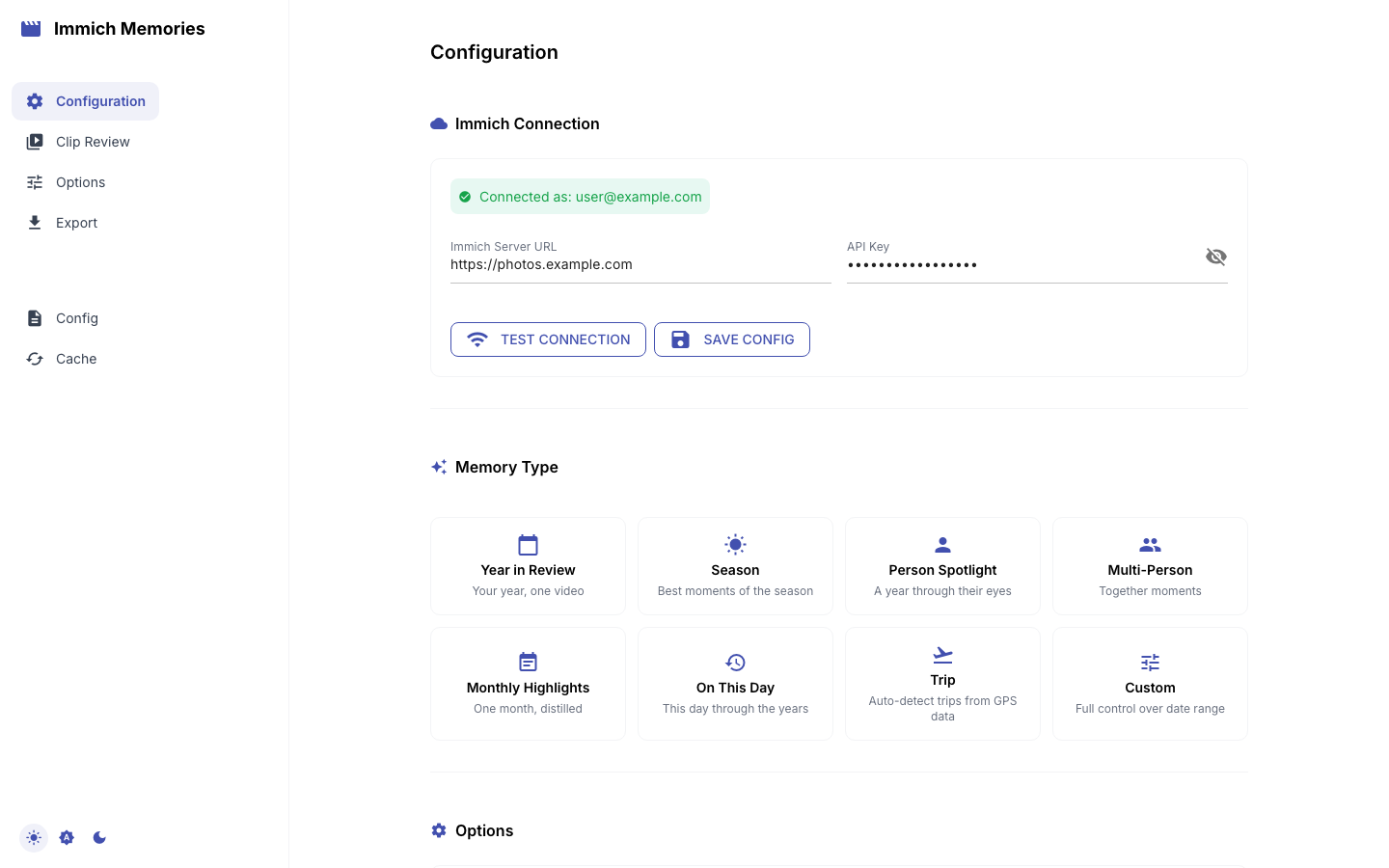
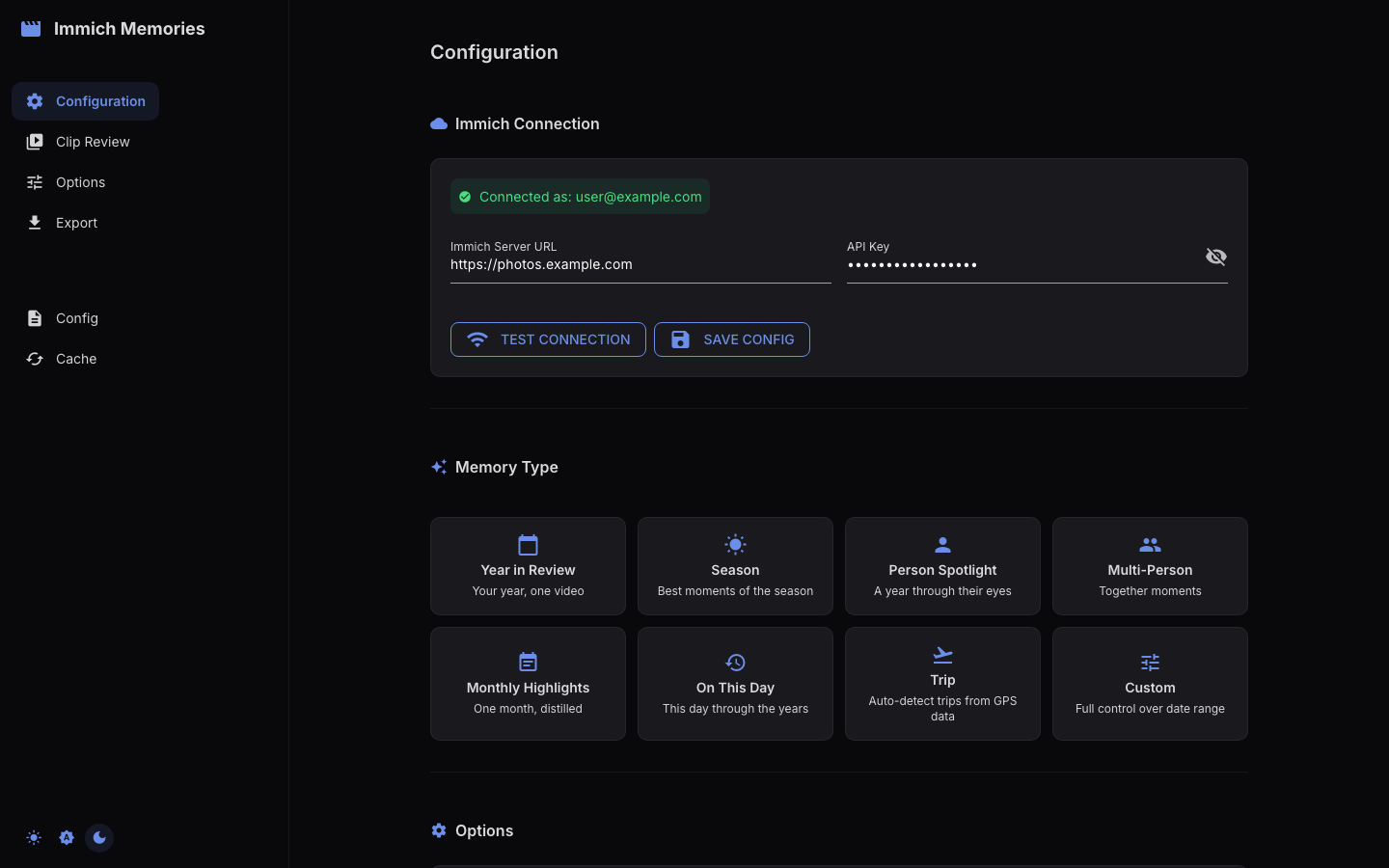
Step 3: Pick "Year in Review"
Select the Year in Review preset card. Pick the year you want (the one with the most videos works best for a first try). This preset covers an entire calendar year and creates monthly title dividers in the output.
Step 4: Review clips
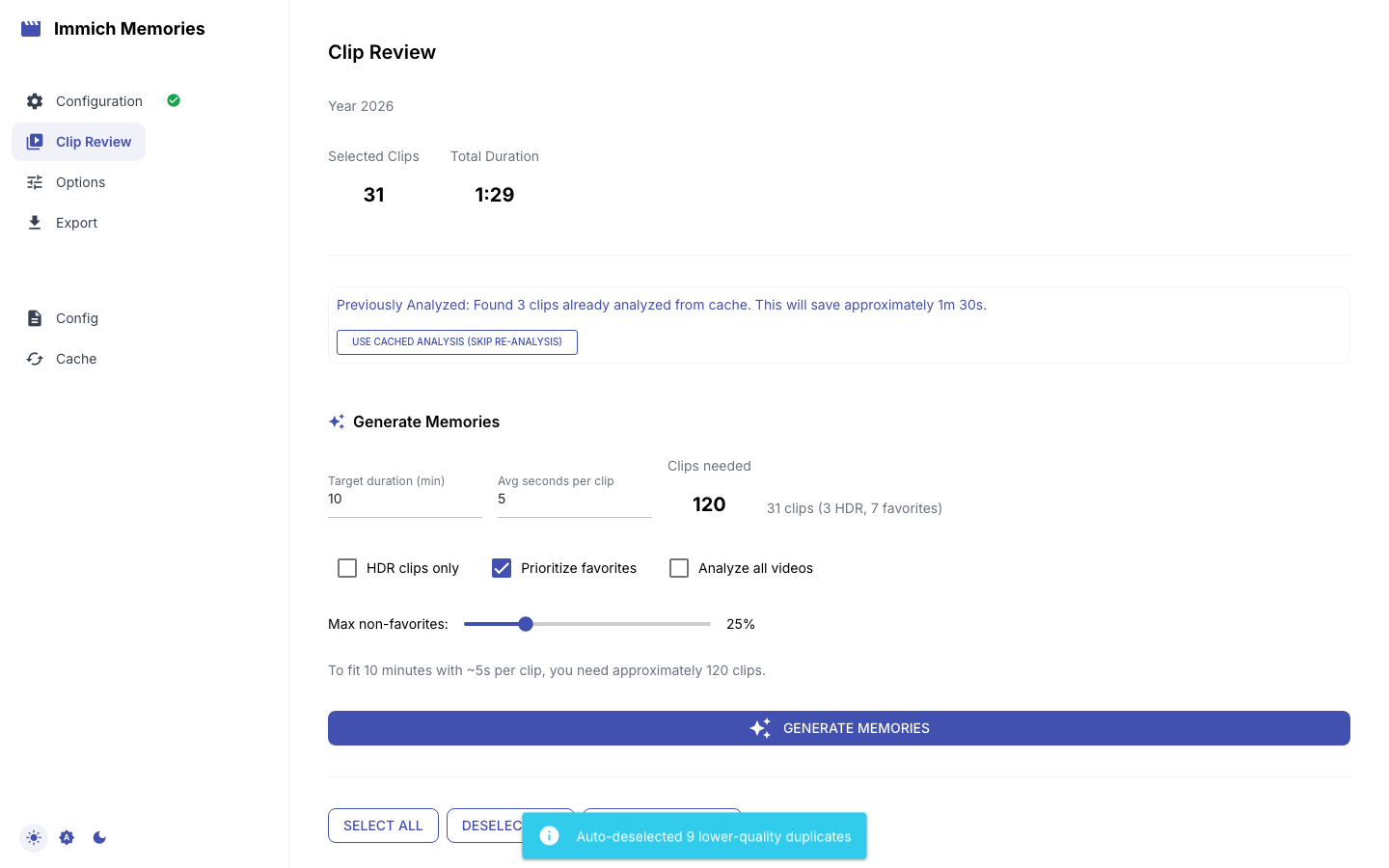
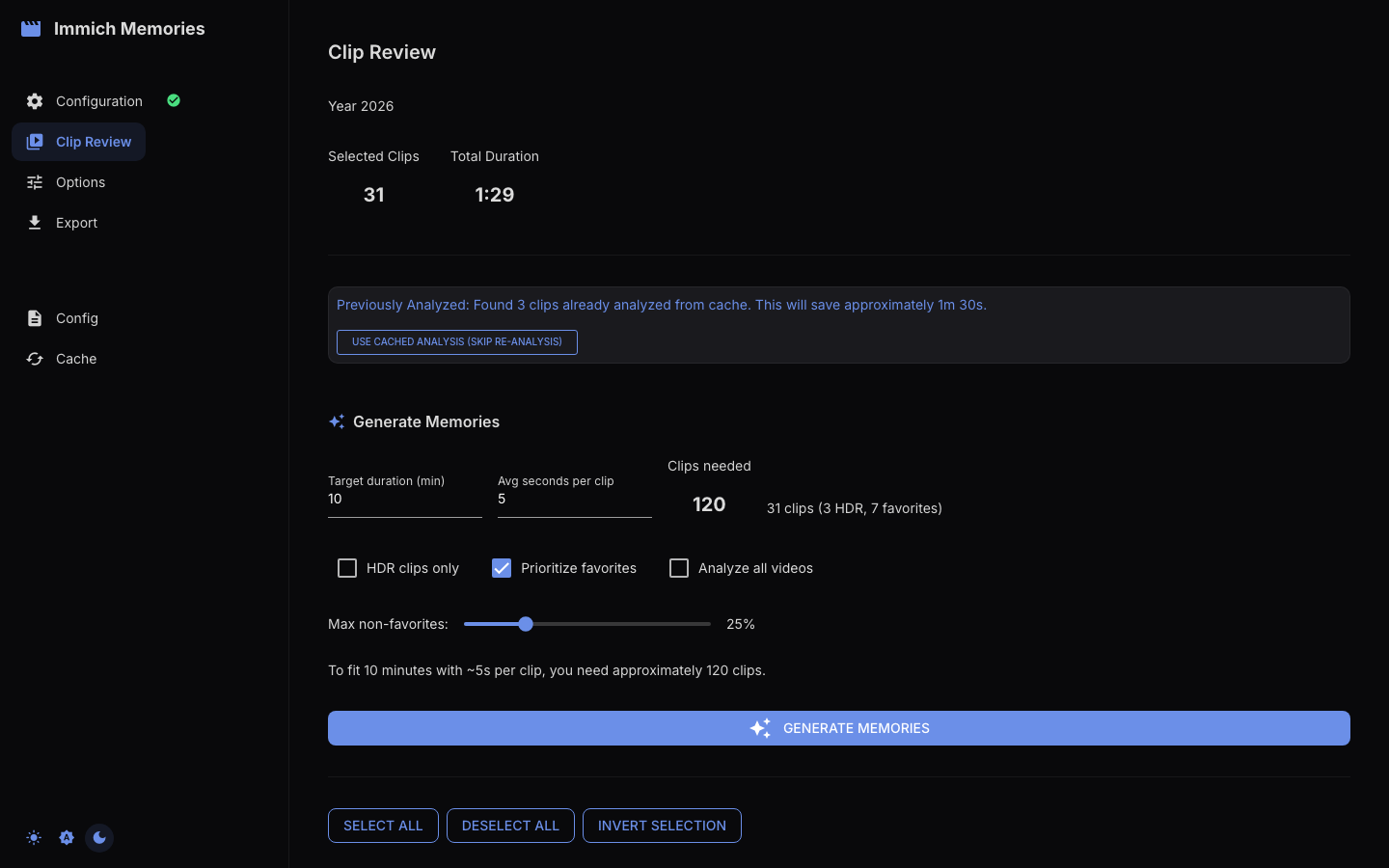
Click Next: Review Clips. Step 2 loads every video in the range (all checked) — deselect anything you already know you don't want, then click Generate Memories. The pipeline clusters, filters, analyzes and refines; the first run costs about a minute per 10 clips on Apple Silicon or a GPU, 1–2 minutes per clip on a CPU-only box. Later runs reuse the cache.
When it finishes, click Review & Refine Selected Clips to see what it picked. Untick a clip to drop it, drag the range slider to change the excerpt, then Continue to Generation.
Step 5: Set options
Move to Step 3 (Generation Options). The defaults work well for a first video:
- Resolution: Auto (match clips) — the default
- Transition: "Smart (mix of fades & cuts)" — the default; it picks per cut point
- Background music: AI Generated is the default when a music backend is configured; otherwise None. Pick Upload file for your own MP3/M4A/WAV
You can leave everything at defaults. The only setting worth changing on your first run: if you have a specific MP3 you want as background music, upload it here.
Step 6: Generate
Click Generate Video in Step 4. The status line walks through the run: downloading clips and extracting segments (cached for next time), assembling with transitions and title screens, "Applying music" (or "Music disabled"), "Uploading to Immich" (or "Delivery not requested"), then "Complete".
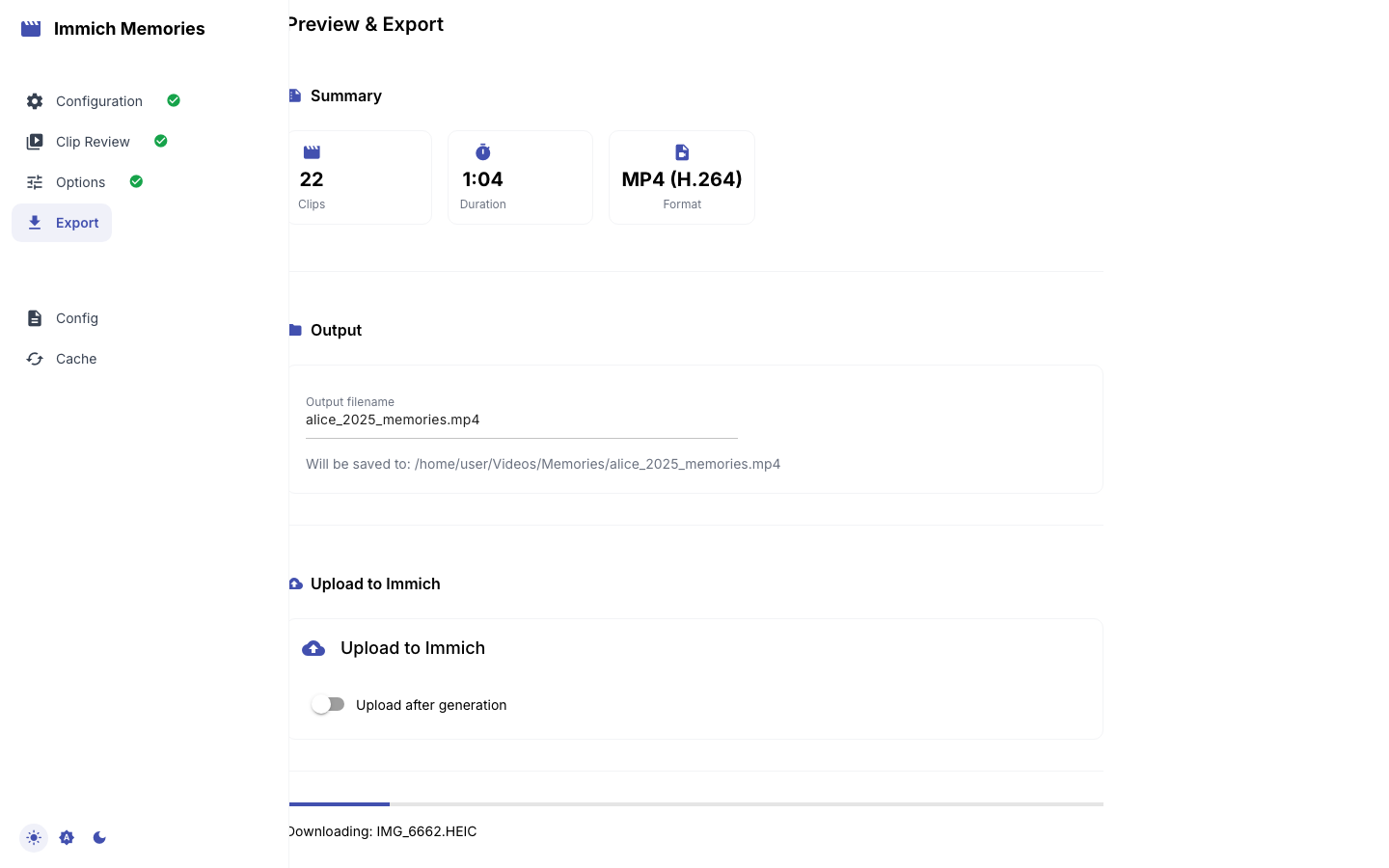
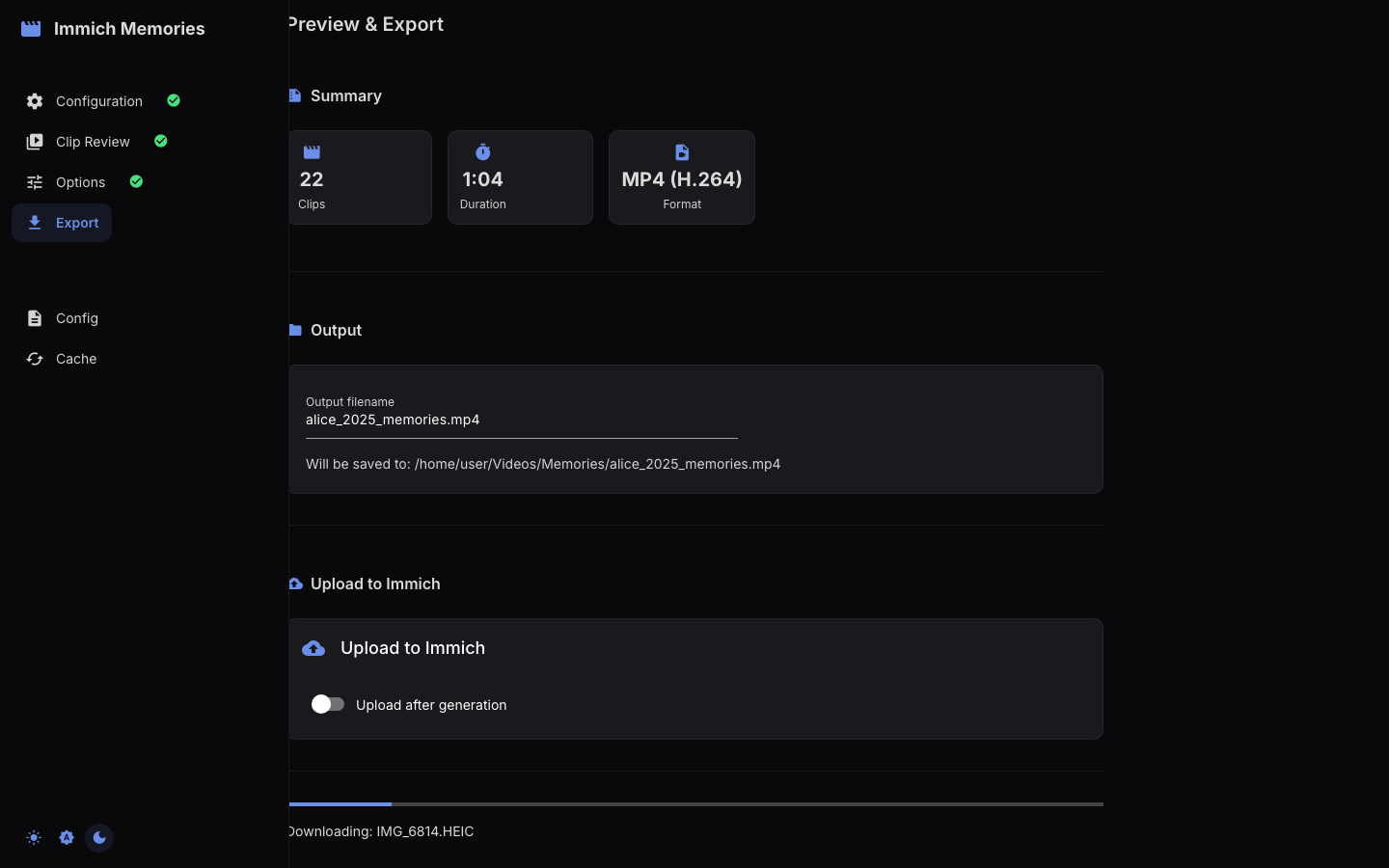
Most of the wait is analysis, not encoding. Measured on 4 CPU cores with no GPU and a cold cache, a 14-clip monthly memory took 10 to 16 minutes end to end and most of that was scoring clips: the table. On Apple Silicon or a GPU the same run is a couple of minutes; 4K roughly doubles the assembly on a GPU and is not recommended on a NAS. Of the assembly that is left, the title screens cost more than the encoder does: at 2 cores, titles were ~263 s of a ~339 s assembly (CPU-Only Mode).
Step 7: Watch
When it's done, the built-in player shows your result and "Saved to:" gives the file path (a per-run folder under ~/Videos/Memories by default). If you turned on Upload after generation, it is also in the Immich album you named.
What just happened?
The pipeline ran four phases: fetch (downloaded videos from Immich via its API, read-only), analyze (scored each clip on motion, faces, audio, and optionally LLM content understanding), select (picked the best segments and distributed them across the time period), assemble (encoded everything with FFmpeg using the streaming assembler, which keeps memory under 550 MB even at 4K).
The analysis results are cached in a local SQLite database. Next time you generate a video for the same time period, most of the analysis is skipped because the scores are already stored: a warm re-run of the same month lands around 3 minutes against 10 cold. Not instant, but a different order of wait.
Next steps
- Try other memory types: Trip Memories (needs GPS data), Person Spotlight (needs face recognition in Immich)
- Set up LLM content analysis so scoring knows what is in the frame
- Automate it: schedule one daily
auto run— see Automated Generation - Explore all CLI options for fine-grained control