Step 2: Clip Review
This step has three screens in sequence: the media list (pick the pool), the analysis run, and Review & Refine (trim the clips the pipeline chose). The sidebar calls it Clip Review.
Loading
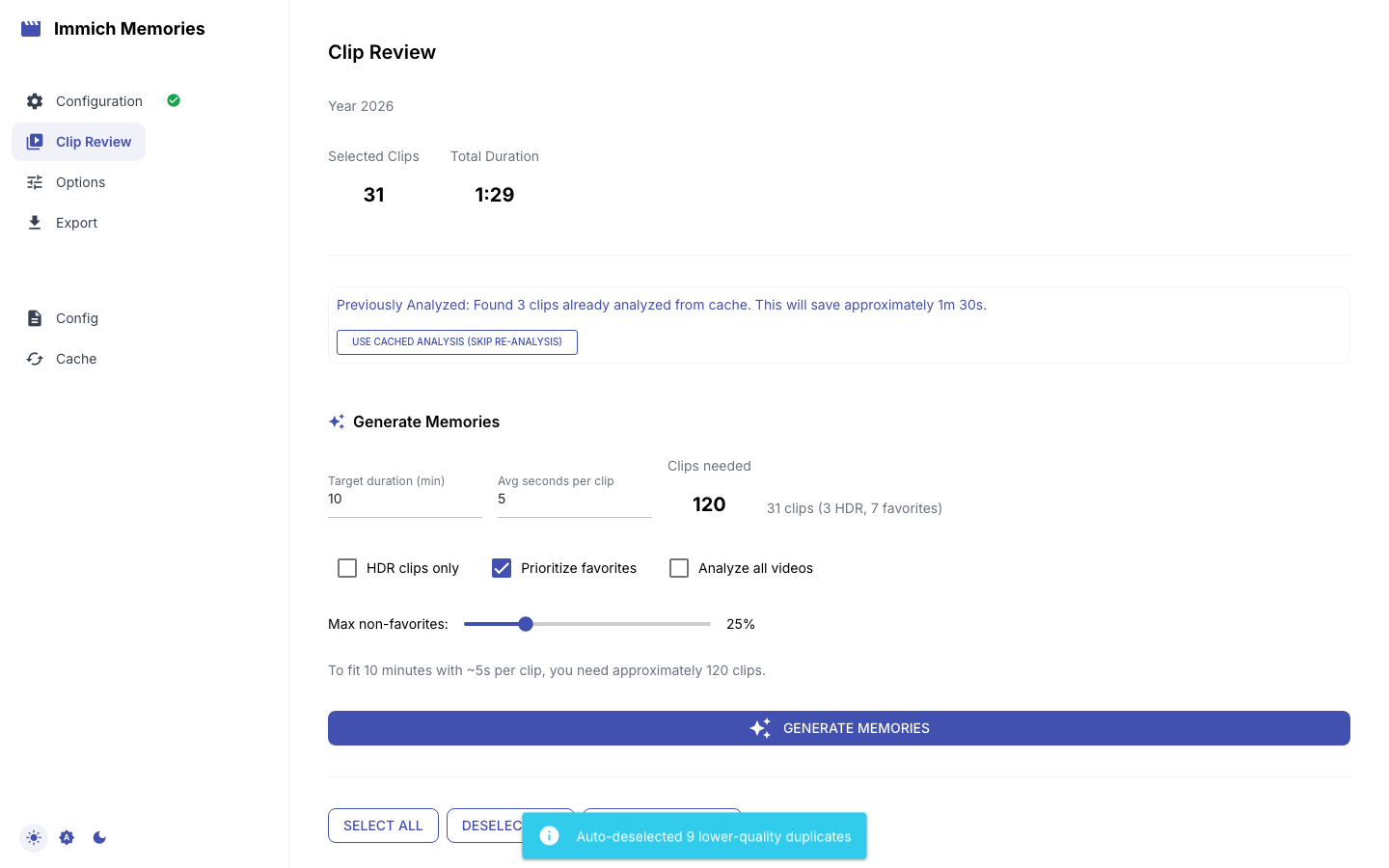
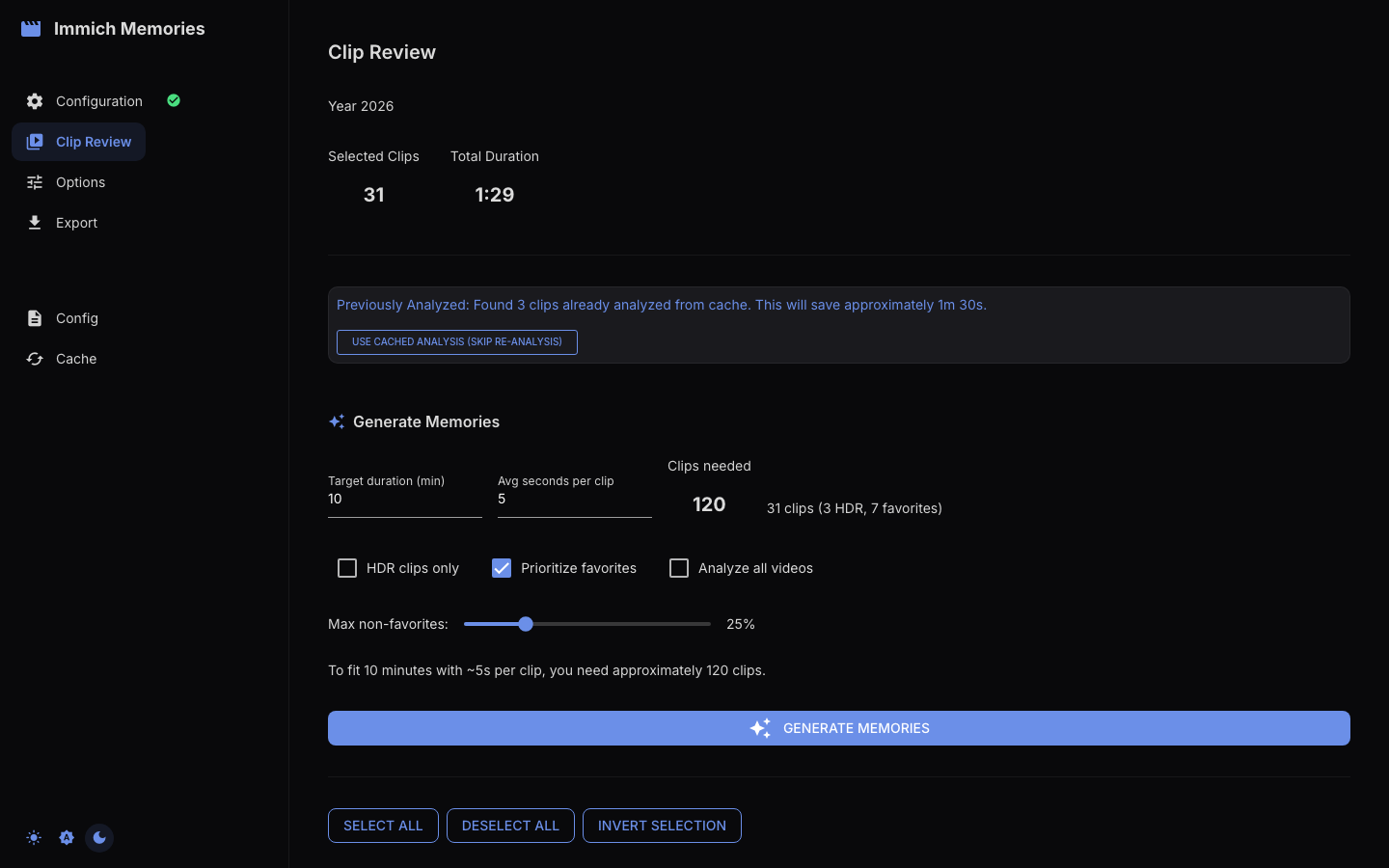
When you arrive from Step 1, a "Loading videos…" dialog fetches the videos, Live Photos and (if enabled) photos for your date range and person filter, plus thumbnails. Nothing is analyzed yet. Media that already has a cached analysis from the current model is tagged Current analysis on its card and is not re-sent to the LLM.
The media list
The header shows the date range, clip count, total footage, HDR count and favorites count. Below it, "N Videos Found" (or "N Videos, M Photos Found") lists everything, grouped into one expansion per month ("March 2025 (12 clips)") with Show more (N remaining) pagination.
Each card shows the thumbnail, badges (Live, ★ favorite, HDR, 4K/HD), the cached analysis description and mood/setting tags when there is one, audio-category tags, date, duration, filename, resolution and colour space, and an Include checkbox. Photos get a camera badge.
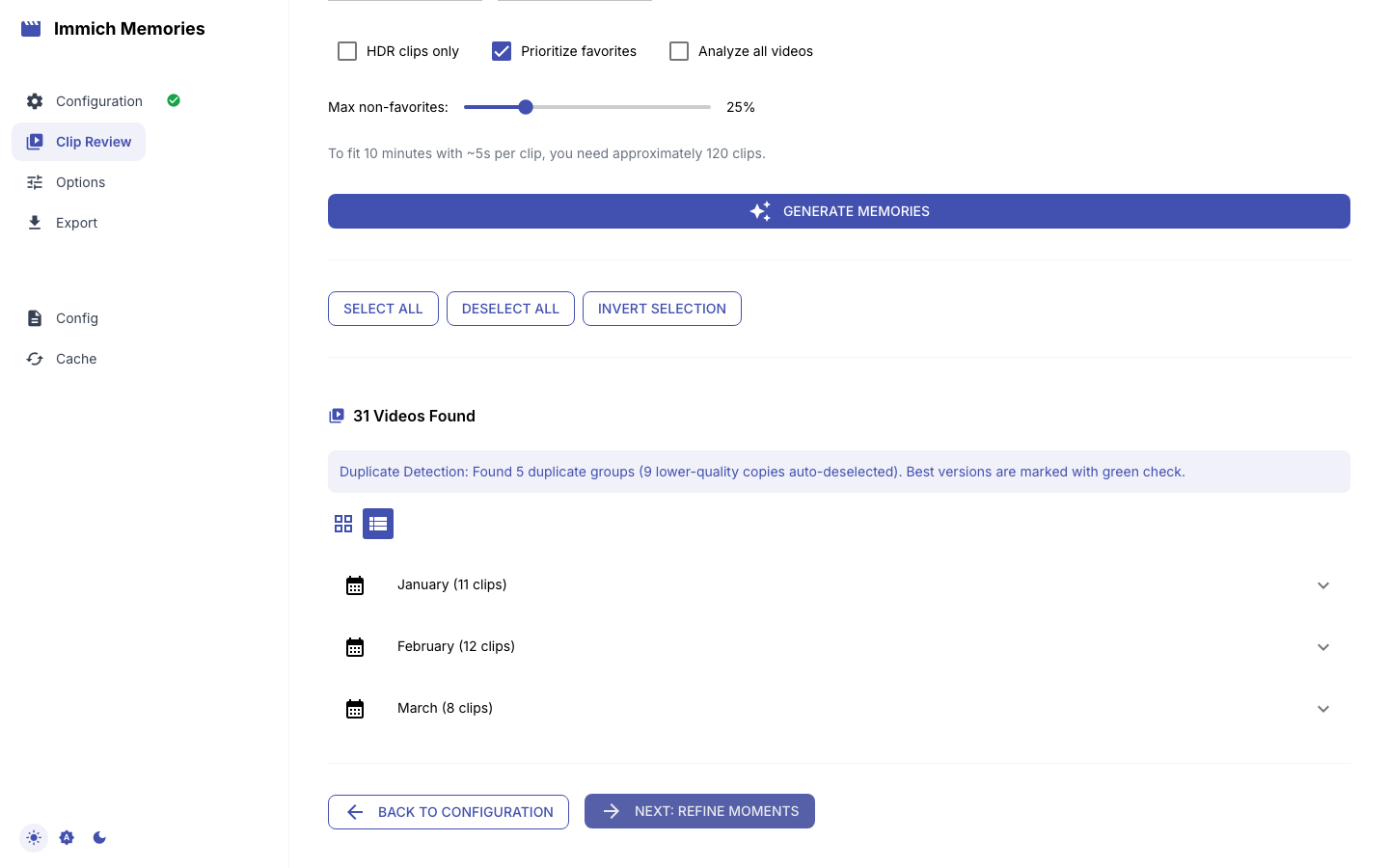
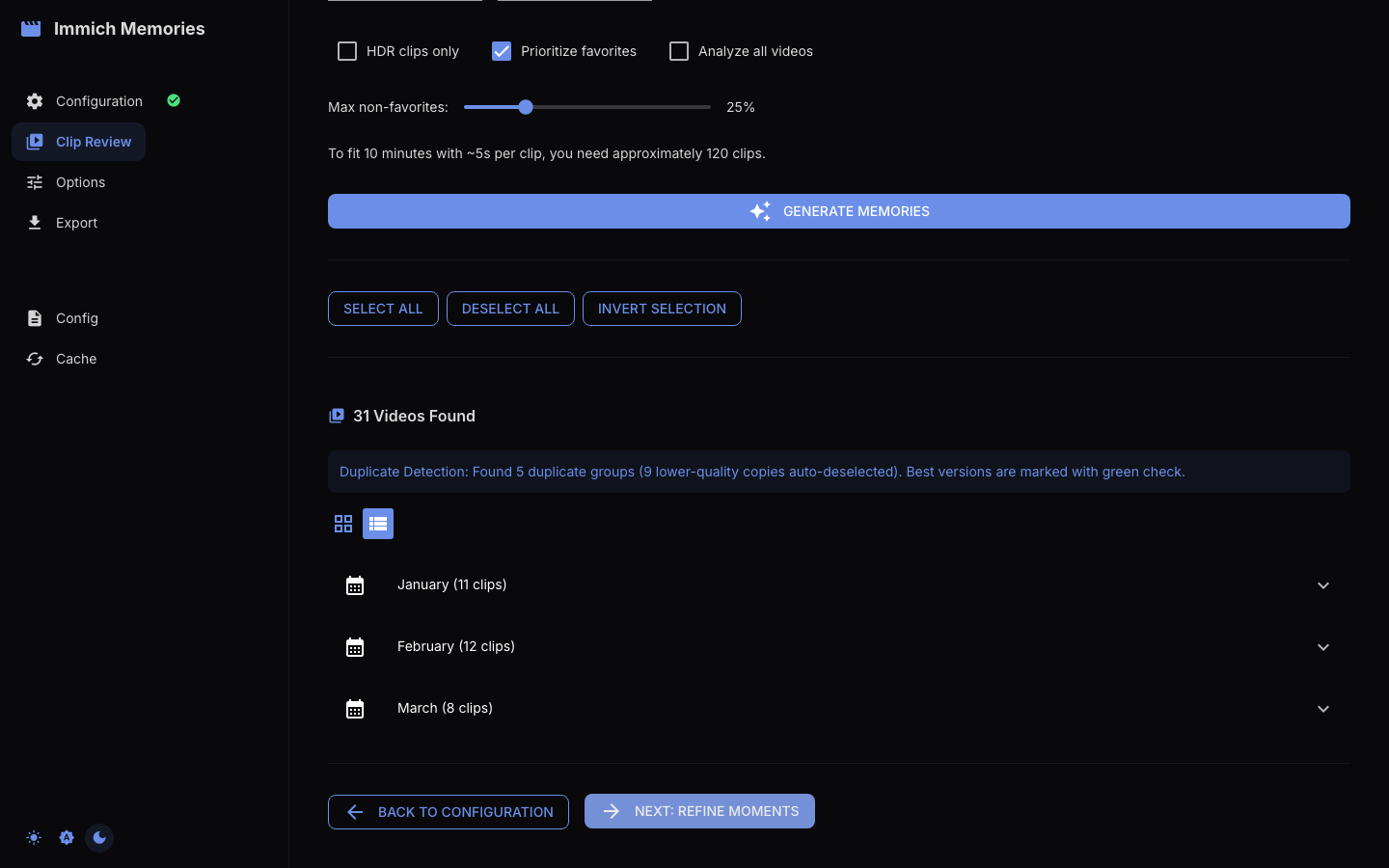
Toolbar: Select All, Deselect All, Invert Selection, and a grid/list toggle. In grid view, click a thumbnail to toggle it; in list view use the checkbox.
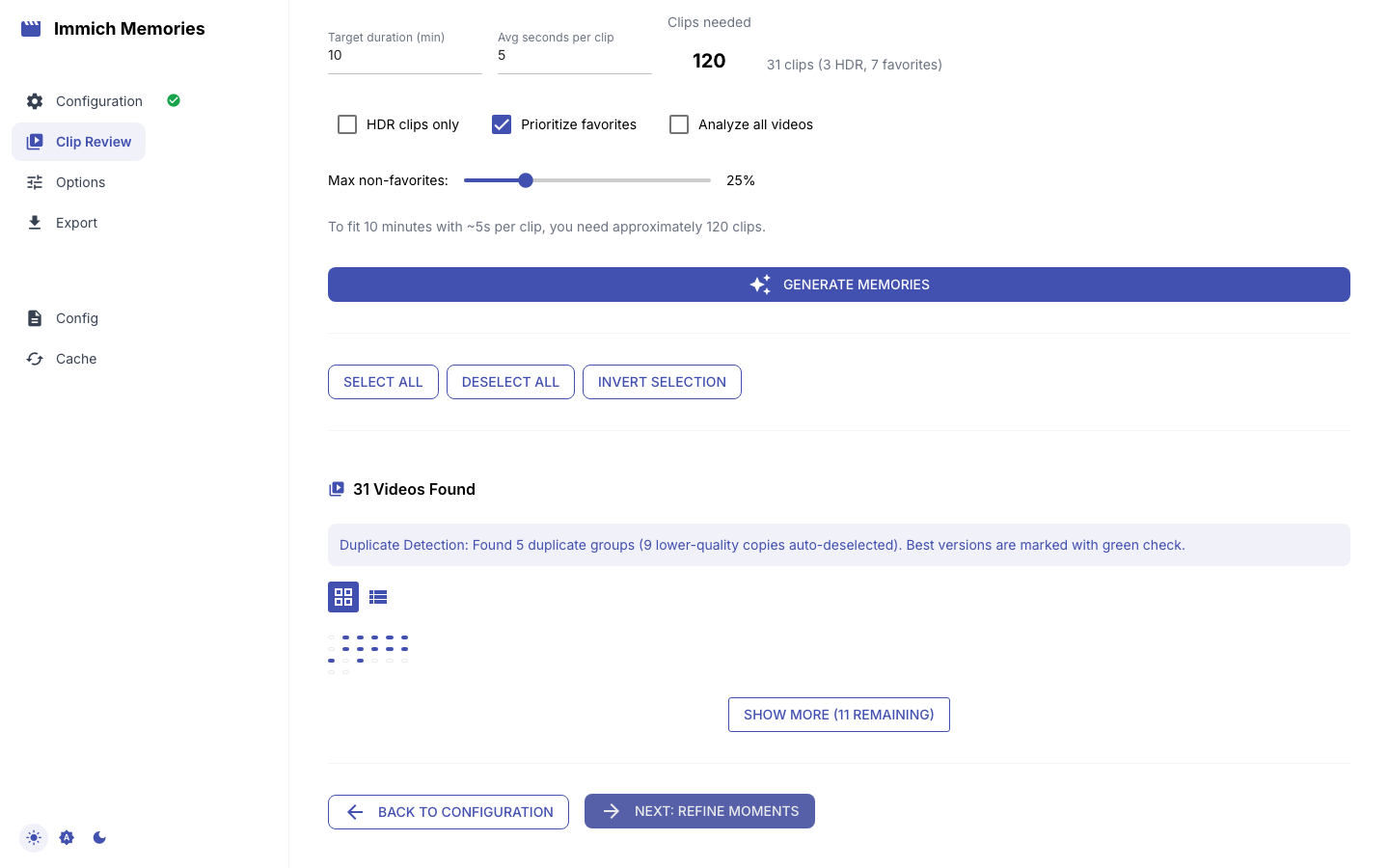
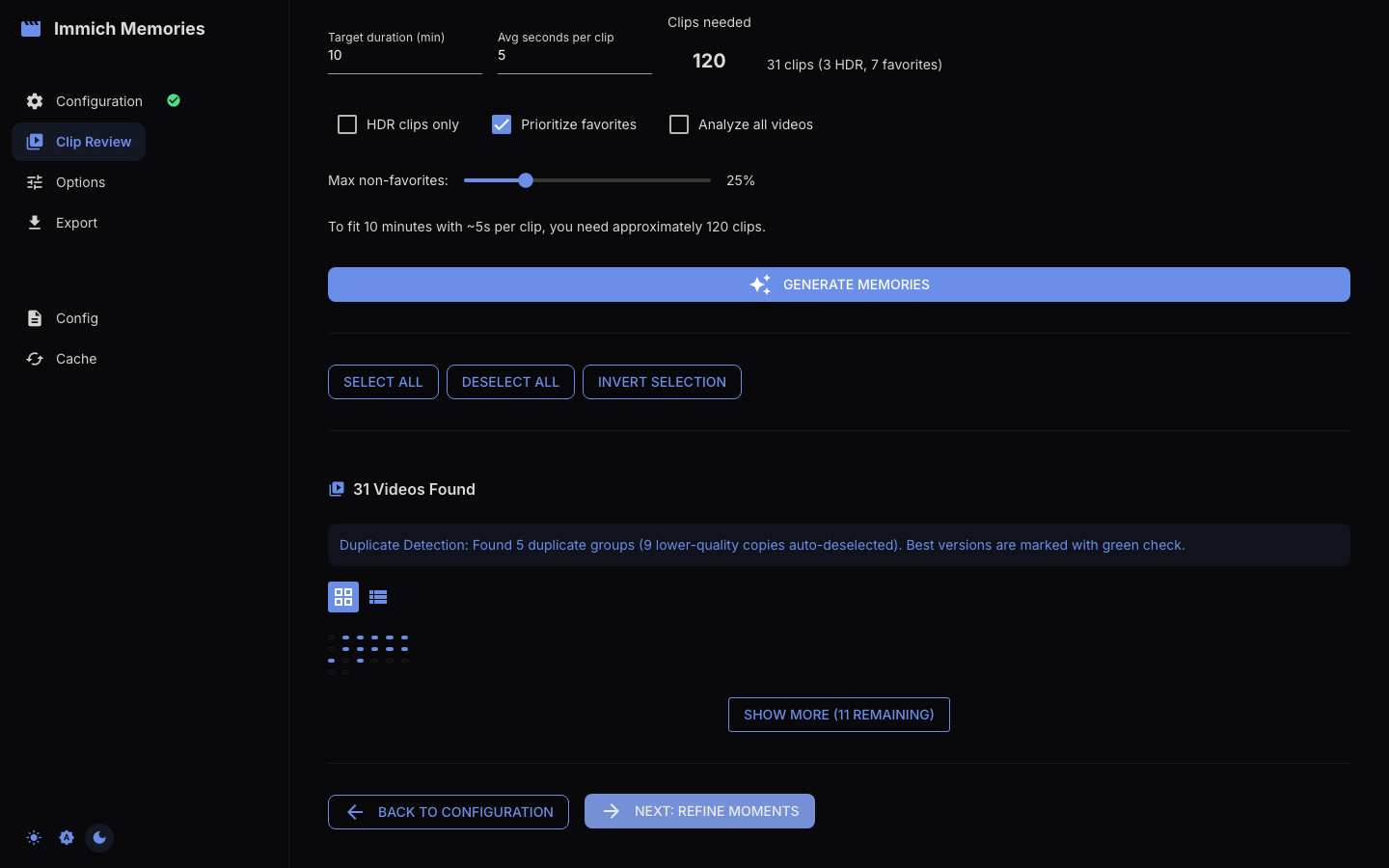
All discovered videos and Live Photos start checked; photos start checked when photo support is on. Checked media is the pool: analysis can rank it, deduplicate it and choose excerpts, but a Fast-depth shortlist cannot silently drop the leftovers.
Duplicate detection
Clips recorded at the same moment (burst recordings, multiple takes) are grouped by perceptual hash. An info card reports the number of duplicate groups; the best version of each is marked Best and the lower-quality copies are auto-deselected and marked Duplicate.
The "Generate Memories" panel
The expansion at the top holds the run settings:
- Auto duration switch. On (default) it shows "Auto · Xm YYs" — the preset target, or for Trip memories a media-aware estimate. Off shows a Target duration (min) field (0.25–60).
- Avg seconds per clip (2–30, default 5) and the derived Clips needed.
- HDR clips only and Prioritize favorites checkboxes. With favorites on, a Preferred max non-favorites slider (0–100 %, default 25 %) sets a preference; Auto exceeds it rather than leave the video short.
- The Generate Memories button.
Running the analysis
Clicking Generate Memories replaces the list with a progress screen: phases 1. Clustering → 2. Filtering → 3. Analyzing → 4. Refining, a progress bar with clip count, elapsed time and ETA, a Currently Analyzing card and a Last Analyzed card (chosen segment, score, LLM description when enabled), and a Cancel Pipeline button. First runs cost about a minute per 10 clips on Apple Silicon or a GPU and 1–2 minutes per clip on a CPU-only box (see the resource table); cached clips are free.
When it finishes you get "Pipeline complete! Planned N clips from M eligible media items." with counts for Media Eligible, Videos Deeply Analyzed, Clips Planned and Time Elapsed, then two buttons: Review & Refine Selected Clips or Start Over (Select Different Clips).
Review & Refine
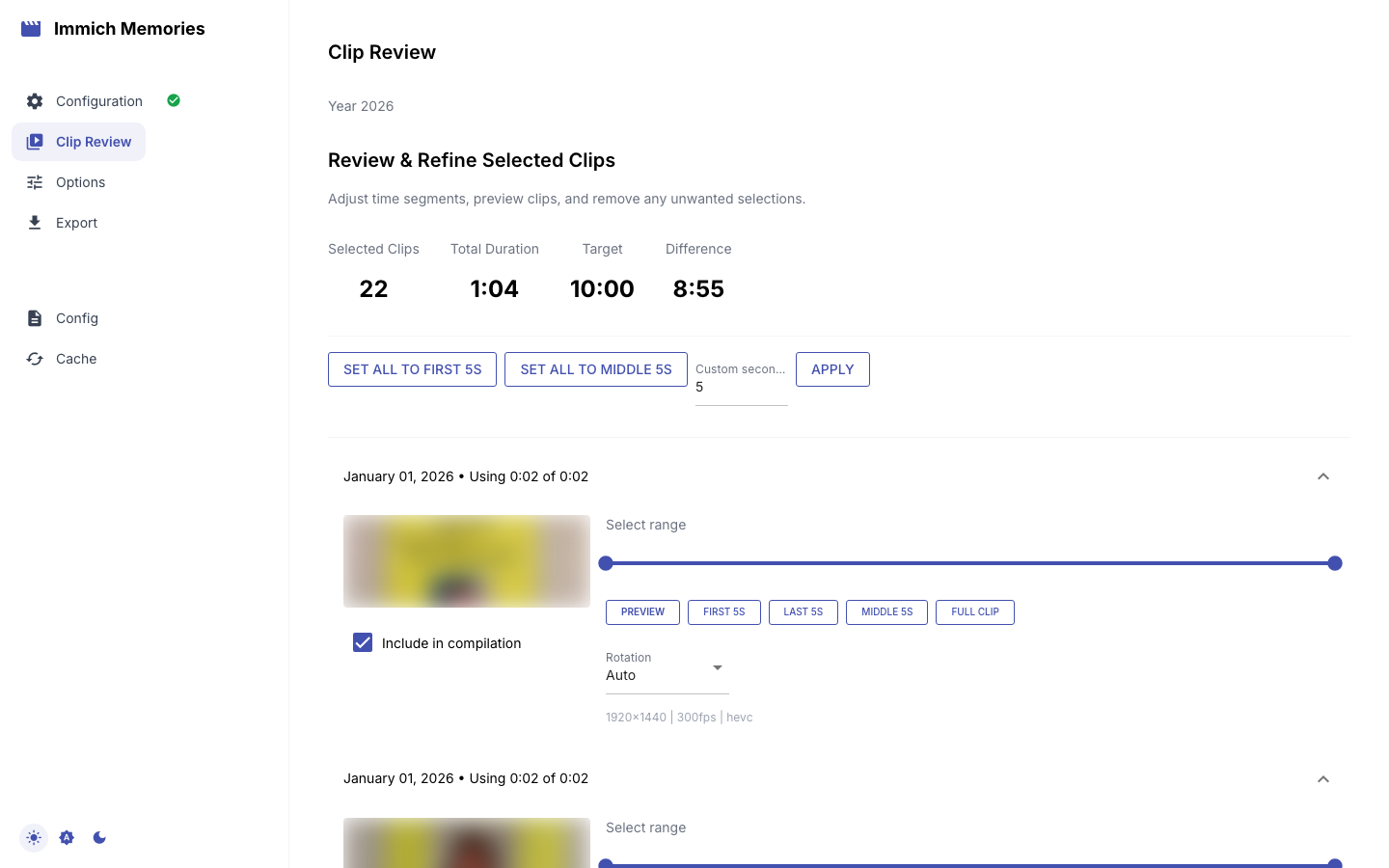
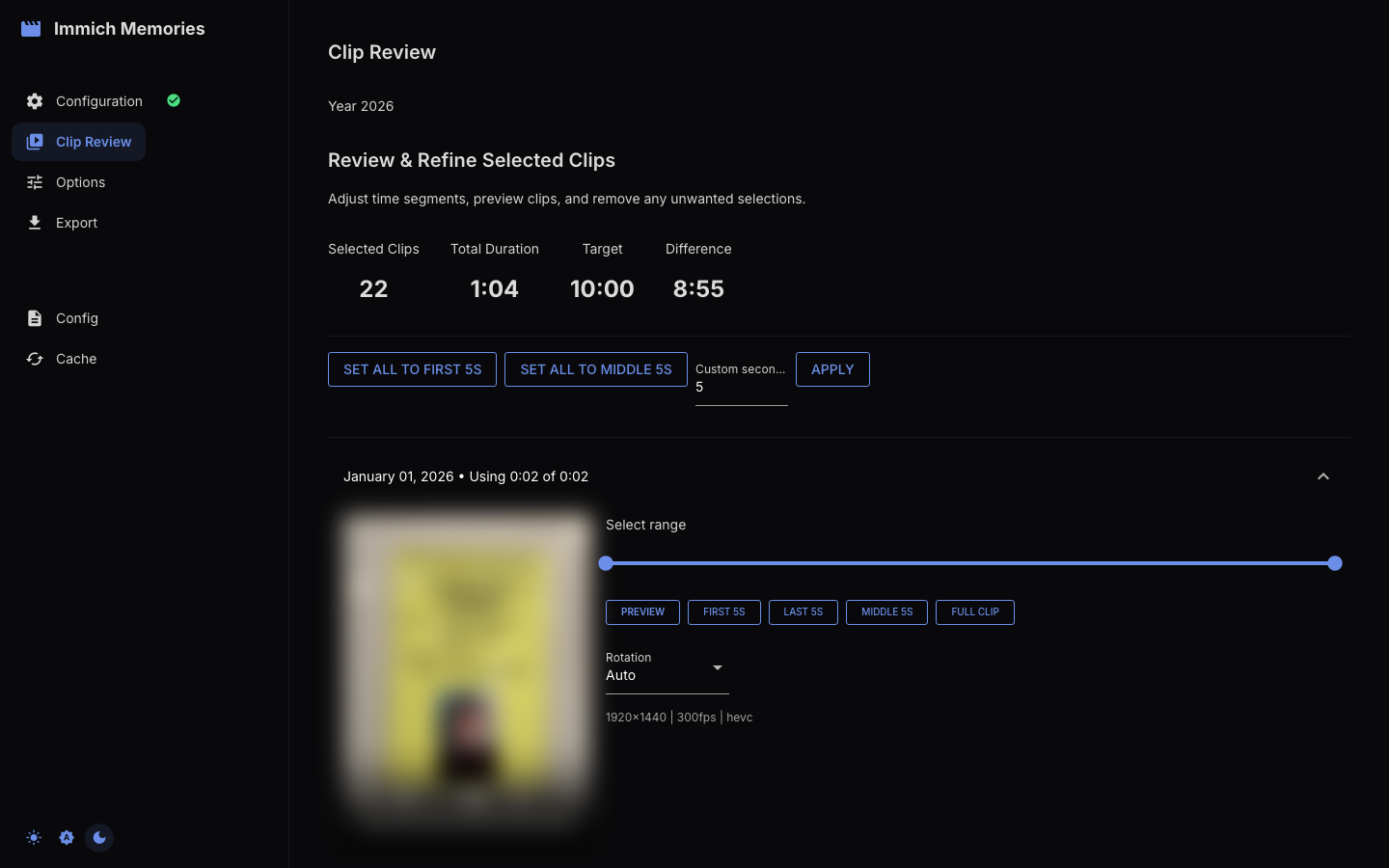
Four metrics at the top: Selected Clips, Total Duration, Target, Difference. Bulk actions: Set all to first 5s, Set all to middle 5s, or a Custom seconds value with Apply.
Each planned clip is an expansion ("★ HDR March 03, 2025 • Using 5s of 12s") with:
- an Include in compilation checkbox
- a Select range slider for the excerpt, plus Preview, First 5s, Last 5s, Middle 5s and Full clip buttons (Preview swaps the thumbnail for an inline player)
- a Rotation select: Auto, 0°, 90° CW, 180°, 90° CCW
The Final Duration updates as you edit. Navigation: Back to Selection, Re-run Analysis, Continue to Generation.
Photos in the list
When photo support is enabled (config or the Step 1 switch), photos appear alongside video clips, merged into the same chronological list, with a camera badge and their own Include checkbox. Photos are auto-selected at generation time from the checked pool; see Photo Support.
Cache
Analysis results live in a local SQLite database. Coming back to the same library later, cached clips are marked Current analysis and skip the expensive part; only new imports and clips analysed by an older model get re-analysed. Clear caches from the sidebar's Cache page.