Step 3: Generation Options
This step controls what the final video looks and sounds like. The sidebar calls it Options.
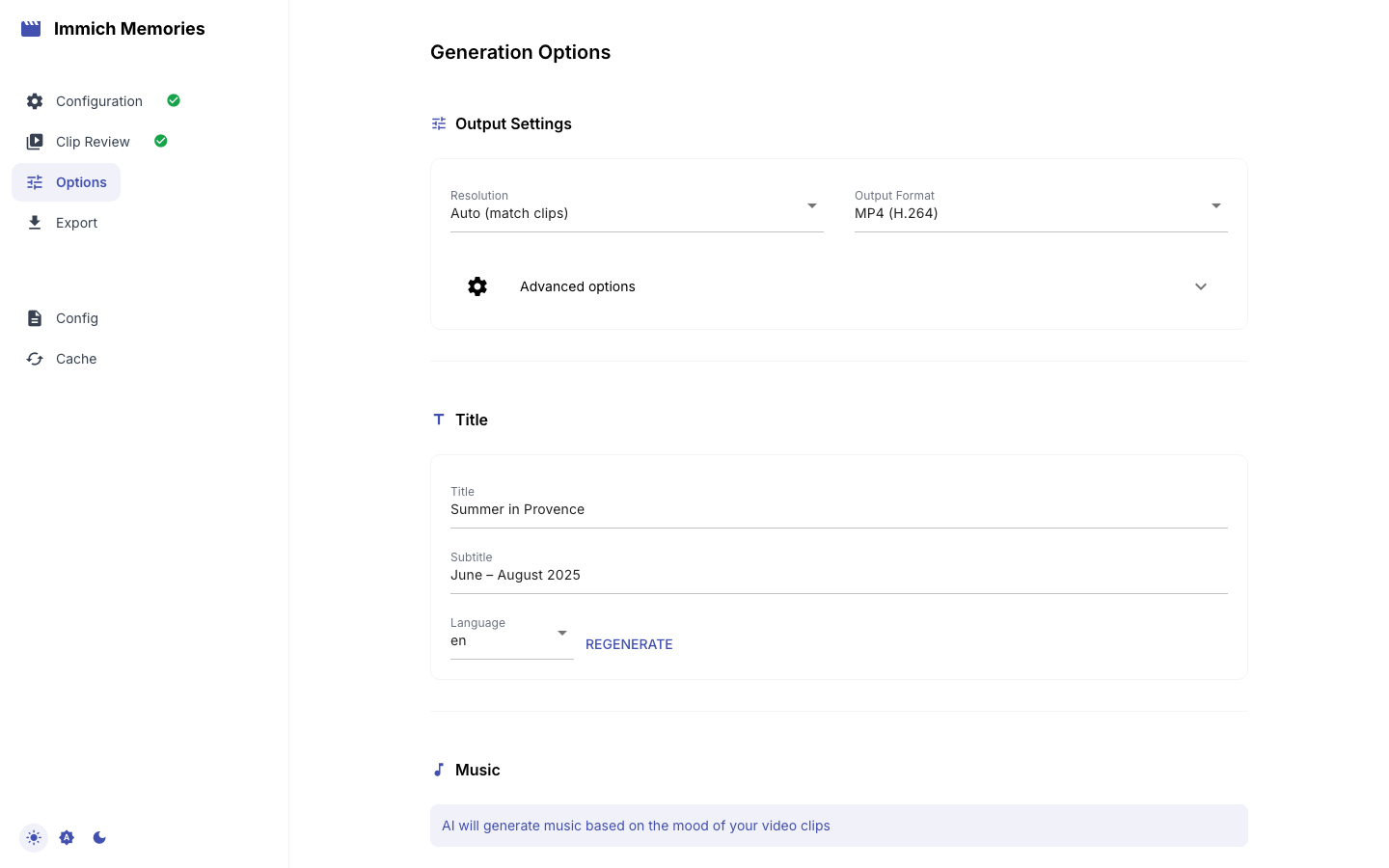
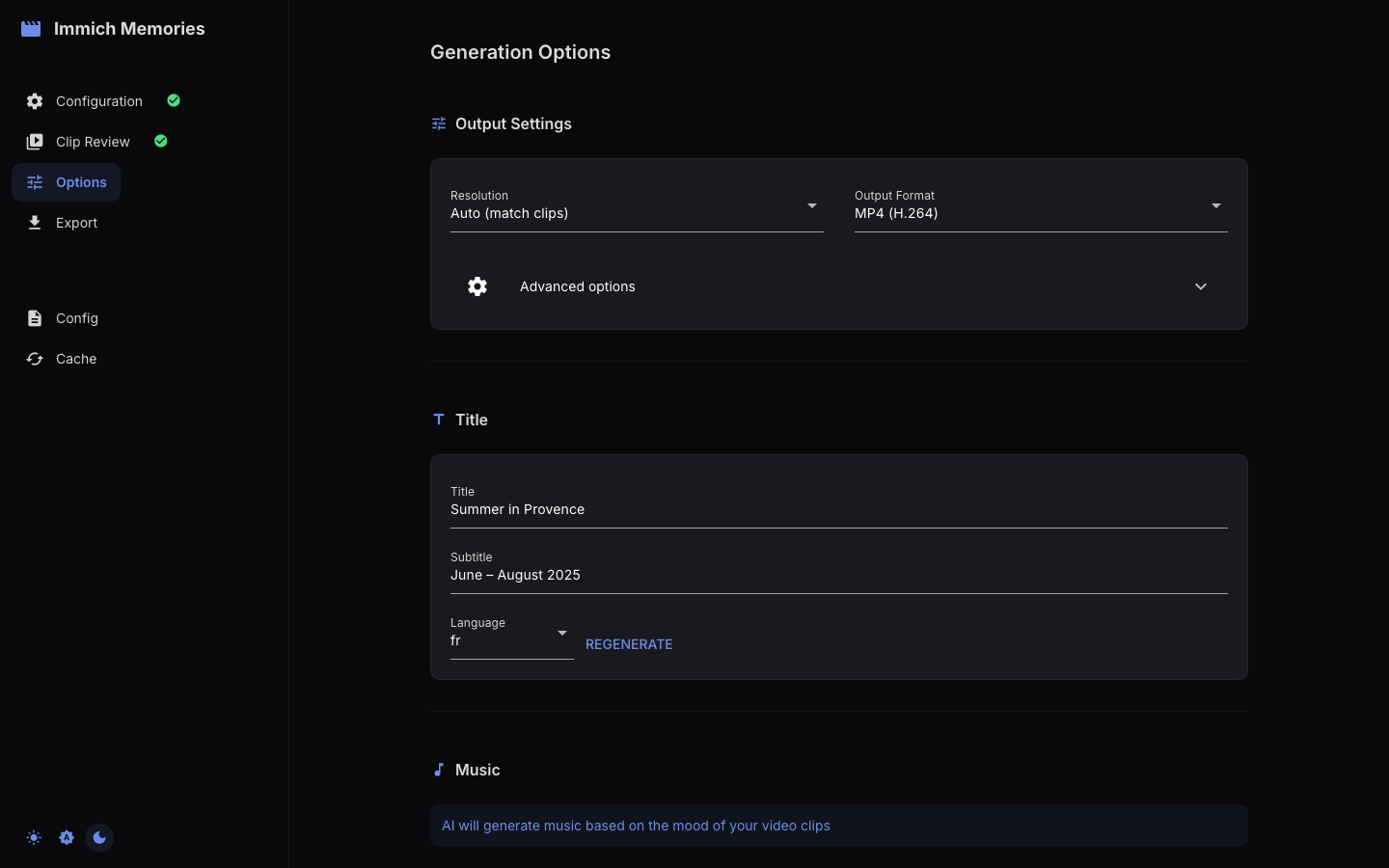
Output settings
Two selects are always visible:
- Resolution: Auto (match clips) (default), 4K, 1080p, 720p. Auto picks the tier of your source clips; 720p renders fastest, 4K needs the source material and the patience.
- Output Format: MP4 (H.264), MP4 (H.265), MOV (H.264), MOV (H.265), MOV (ProRes). The default follows
output.codecandoutput.formatin your config — MP4 (H.264) out of the box.
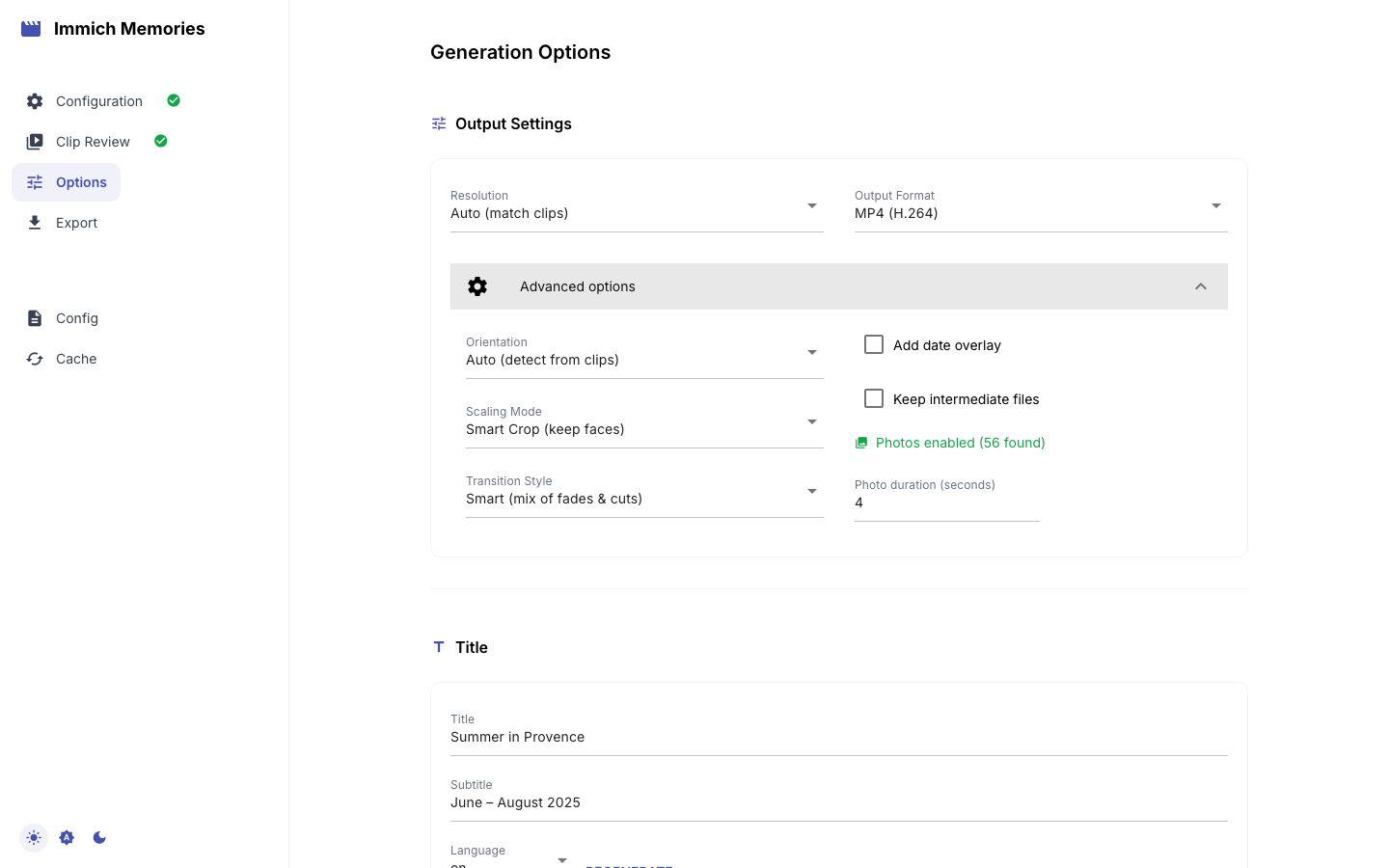
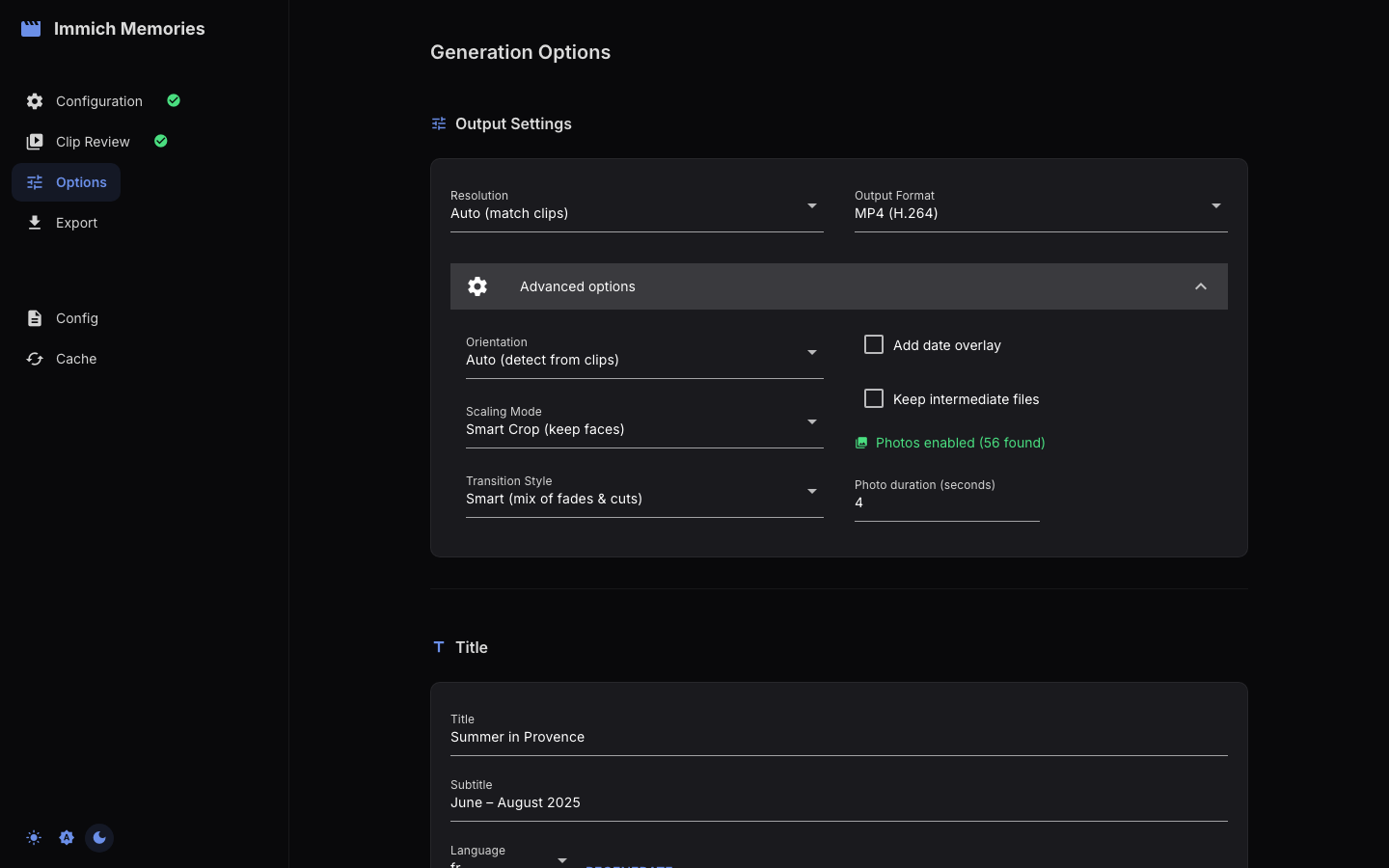
Advanced options
A collapsed expansion under the two selects:
- Orientation: Auto (detect from clips) (default), Landscape (16:9), Portrait (9:16), Square (1:1). When the source and target aspect ratios differ, the whole frame is kept and the leftover space is filled — clips are never cropped, see face-aware framing.
- Scaling Mode: Blur background (default), Letterbox (black bars). Starts on whatever
defaults.scale_modesays, so the wizard and--scale-modeproduce the same video. - Transition Style: Smart (mix of fades & cuts) (default), Crossfade, Cut, None. Smart picks per cut point: crossfade for slow scenes, hard cut for fast action.
- Add date overlay, Caption clips with their place, and Keep intermediate files checkboxes. The place caption is the wizard's equivalent of the CLI's
--add-place, and needs GPS on the clips to show anything. - When photos are enabled: "Photos enabled (N found)" and a Photo duration (seconds) field (1–10).
Title
Title and Subtitle fields pre-filled with the pipeline's suggestion (LLM-generated when content analysis is on, template otherwise), a Language select (auto, en, fr, de, es, it, nl, pt, ja, ko) and a Regenerate button. Trip memories also show chips with the detected trip and map mode. See Title Screens & Maps.
Music
The Background music select has up to four entries:
- None: original clip audio only.
- Upload file: a Select music file picker (
.mp3,.m4a,.wav) and a Music volume slider. - Bundled: a royalty-free track from the installed music package, chosen to match the memory's mood and the photo cut cadence. Only listed when that package is present — offering it otherwise would resolve to silence, which is what None is for. Picking it skips AI generation even when a generator is configured.
- AI Generated: only listed when
ace_step.enabledormusicgen.enabledis set in your config, and then it is the default. Shows the volume slider and a Generate Music button so you can hear the track before rendering; Regenerate Music tries again. See Audio & Music.
Summary
Stat cards for Clips, Duration, Resolution and Music, then Back to Clip Review / Next: Preview & Export.
Hardware acceleration is not shown here; it is auto-detected at encode time. Run immich-memories hardware or immich-memories preflight to see what your machine offers.