Linux + NVIDIA GPU Setup
For Linux servers with NVIDIA GPUs. Docker with nvidia-container-toolkit for NVENC encoding, CUDA scene analysis, GPU title rendering, and optional AI music generation.
Who this is for
You have a Linux server (Ubuntu, Debian, Fedora) with an NVIDIA GPU (GTX 1050 or newer — Pascal is where NVENC starts). You want hardware-accelerated encoding and optionally want to run MusicGen or ACE-Step for AI-generated background music.
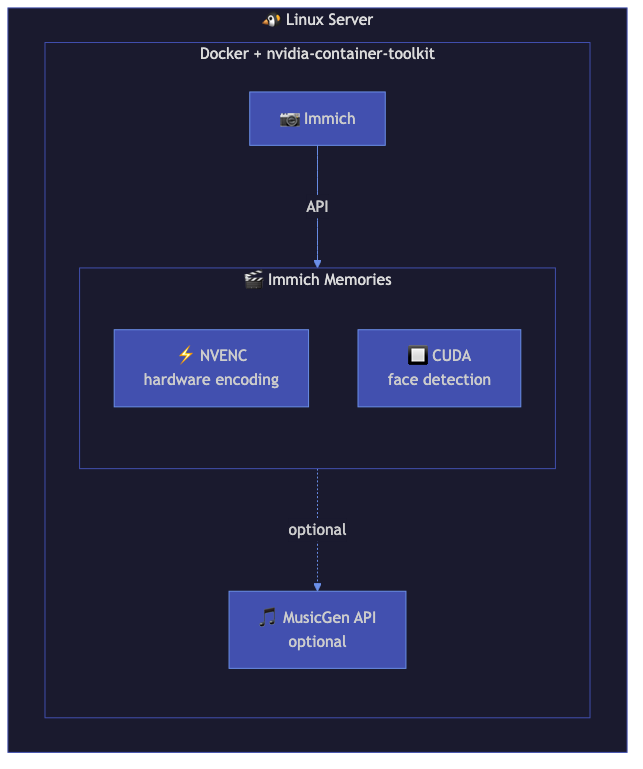
Architecture
┌──────────────────────────────────────────────────────┐
│ Linux Server (NVIDIA GPU)                            │
│                                                      │
│  ┌────────────────────────────────────────────────┐  │
│  │ Docker (nvidia-container-toolkit)              │  │
│  │                                                │  │
│  │  ┌──────────────────┐  ┌────────────────────┐ │  │
│  │  │ Immich Memories   │  │  MusicGen API      │ │  │
│  │  │ NVENC encoding   │  │  (optional)        │ │  │
│  │  │ CUDA analysis    │  │  port 8000         │ │  │
│  │  │ port 8080        │  │                    │ │  │
│  │  └──────────────────┘  └────────────────────┘ │  │
│  └────────────────────────────────────────────────┘  │
│                     │                                 │
│            ┌────────┴─────────┐                       │
│            │  Immich server   │                       │
│            └──────────────────┘                       │
└──────────────────────────────────────────────────────┘
Prerequisites
Install the NVIDIA container toolkit:
# Ubuntu/Debian
distribution=$(. /etc/os-release;echo $ID$VERSION_ID)
curl -fsSL https://nvidia.github.io/libnvidia-container/gpgkey | \
  sudo gpg --dearmor -o /usr/share/keyrings/nvidia-container-toolkit-keyring.gpg
curl -s -L https://nvidia.github.io/libnvidia-container/$distribution/libnvidia-container.list | \
  sed 's#deb https://#deb [signed-by=/usr/share/keyrings/nvidia-container-toolkit-keyring.gpg] https://#g' | \
  sudo tee /etc/apt/sources.list.d/nvidia-container-toolkit.list
sudo apt-get update && sudo apt-get install -y nvidia-container-toolkit
sudo nvidia-ctk runtime configure --runtime=docker
sudo systemctl restart docker
Verify with: docker run --rm --gpus all nvidia/cuda:12.4.0-base-ubuntu22.04 nvidia-smi
Docker Compose
services:
  immich-memories:
    image: ghcr.io/sam-dumont/immich-video-memory-generator:latest
    container_name: immich-memories
    ports:
      - "127.0.0.1:8080:8080"        # loopback only — see below to reach it remotely
    volumes:
      - immich-memories-config:/home/immich/.immich-memories
      - ./output:/app/output          # mkdir + chown to the container UID first, see below
    environment:
      IMMICH_URL: "${IMMICH_URL}"
      IMMICH_API_KEY: "${IMMICH_API_KEY}"
      NVIDIA_DRIVER_CAPABILITIES: compute,video,utility   # `video` = NVENC/NVDEC libraries
    restart: unless-stopped
    deploy:
      resources:
        reservations:
          devices:
            - driver: nvidia
              count: 1
              capabilities: [gpu, video]
        limits:
          memory: 8G

volumes:
  immich-memories-config:
The port is published on loopback only. A GPU box is usually headless, so either tunnel
(ssh -L 8080:localhost:8080 your-server) or publish it properly: enable
authentication first — the app holds an Immich API key to your
whole photo library — then change the mapping to "8080:8080".
One thing the compose file cannot do for you:
- Bind-mount ownership: the container runs as UID/GID 1000. Create the output directory
yourself (
mkdir -p output;chown 1000:1000 outputif your user isn't 1000) or Docker creates it as root and the app cannot write there. See Docker install for the alternatives.
.env file
IMMICH_URL=http://immich-server:2283
IMMICH_API_KEY=your-api-key-here
What works
- NVENC encoding: hardware-accelerated H.264/H.265 encoding. NVIDIA is probed first, so NVENC is used automatically — nothing to configure.
- CUDA scene analysis: frame differencing for scene detection runs on the GPU when OpenCV has CUDA support. Face detection is CPU (OpenCV Haar cascades) on Linux — there is no CUDA face path.
- Taichi GPU title renderer: full particle effects and gradient backgrounds using the NVIDIA GPU.
- AI music generation: if you run a MusicGen or ACE-Step server alongside, configure it in the
musicgenorace_stepconfig sections. - All memory types and features: everything works with GPU acceleration.
What doesn't work
- LLM content analysis on consumer GPUs: the tested models are Qwen3.6-27B and Qwen3.6-35B-A3B, which Ollama ships as 17 GB and 24 GB downloads. Neither stays resident on a 12 GB card — Ollama will offload the rest to system RAM and run, slowly. A 24 GB card (3090, 4090) holds the 27B comfortably. Below that, point
llm.base_urlat a box that can, or leave content analysis off: everything except the holistic review still runs.
Performance expectations
No GPU run of this pipeline has been measured end to end, so there is no table here. The one measured run is CPU-only (NAS-only): 10 minutes for a 14-clip monthly, of which analysis was 7.4.
That shape is what to plan around. Render was 2.7 of those ten minutes and the encode is only part of it — the titles are the rest, and a CUDA Taichi backend is what shortens those. The other 7.4 minutes are analysis and selection: downloading each candidate clip from Immich, scoring it, and the LLM passes if you turned them on. Those are bounded by your Immich server and your LLM, not by the card. Analysis is cached, so a second run of the same period is much cheaper than the first.
If you measure a run on your own box, an issue with the numbers is welcome.
Adding LLM analysis
Developed and tested against Qwen3.6-27B and Qwen3.6-35B-A3B. Vision is built into the
Qwen3.x models, so there is no -VL variant to look for. Any OpenAI-compatible endpoint that
accepts images works; those two are what the pipeline was exercised against.
Run Ollama with GPU support alongside Immich Memories:
docker run -d --gpus all -p 11434:11434 --name ollama ollama/ollama
docker exec ollama ollama pull qwen3.6:27b     # 17 GB; :35b is the 35B-A3B, 24 GB
Then add to your Immich Memories config:
advanced:
  llm:
    provider: ollama
    base_url: http://ollama:11434
    model: qwen3.6:27b
  content_analysis:
    enabled: true
model has to be the tag you pulled, exactly. Smaller Qwen3.x sizes exist and will run — they are
not the tested pair, so treat them as your own experiment.
Adding AI music
MusicGen or ACE-Step servers need their own GPU allocation. If you have a single GPU, time-share it: generate music first, then encode video. If you have multiple GPUs, dedicate one for music generation.
Configure in config.yaml:
advanced:
  musicgen:
    enabled: true
    base_url: http://musicgen-server:8000
Tips
- Check GPU detection: run
docker exec immich-memories immich-memories hardwareto verify GPU detection inside the container. - Multi-GPU: pick the card with
NVIDIA_VISIBLE_DEVICES=0(orCUDA_VISIBLE_DEVICES) in the container environment; there is no config knob for it. - VRAM monitoring: watch
nvidia-smiduring generation. Peak VRAM usage is about 2-3 GB for encoding, 1-2 GB for Taichi title rendering. - Headless Linux: the CLI works fully on headless servers. Use
immich-memories generateinstead of the UI if you don't need a browser.