Mac + Local LLM Setup
For Mac users running everything locally: LLM clip scoring, Apple Silicon hardware acceleration, and a native install without Docker.
Who this is for
You have a Mac with Apple Silicon (M1/M2/M3/M4). You want LLM-powered content analysis running entirely on your machine, no cloud APIs. You're comfortable with the terminal.
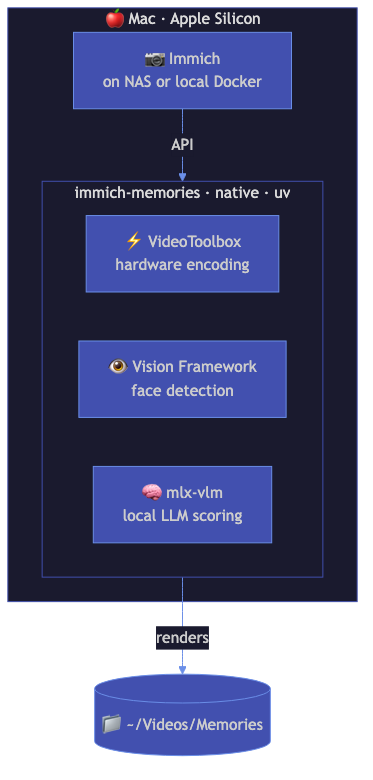
Architecture
┌───────────────────────────────────────────────────┐
│ Mac (Apple Silicon)                               │
│                                                   │
│  ┌──────────────┐  ┌──────────────────────────┐  │
│  │  oMLX        │  │   Immich Memories         │  │
│  │  (Qwen3.6)   │←─│   (native Python)         │  │
│  │  port 8000   │  │   VideoToolbox encoding   │  │
│  │              │  │   Vision face detection   │  │
│  └──────────────┘  └──────────────────────────┘  │
│                             │                     │
│                    ┌────────┴─────────┐           │
│                    │  Immich server   │           │
│                    │  (local or remote)│           │
│                    └──────────────────┘           │
└───────────────────────────────────────────────────┘
Install
# Install Immich Memories with the Mac extras (Vision face detection, Taichi GPU titles, ...)
uv tool install "immich-memories[all-mac]"

# Start the UI
immich-memories ui
The bare immich-memories package works too, but face detection then falls back to CPU Haar
cascades and title screens are PIL-rendered — the all-mac extra is what enables the Vision
Framework and Taichi paths described below.
Open http://localhost:8080.
Set up a local vision model
This is developed and tested against Qwen3.6-27B and Qwen3.6-35B-A3B, served by
oMLX on Apple Silicon. Vision is built into the Qwen3.x models —
there is no separate -VL variant to hunt for. Anything else that speaks the OpenAI
/v1/chat/completions contract and accepts images will work; it just is not what the pipeline was
exercised against.
oMLX is a menu-bar app that serves MLX models over an OpenAI-compatible API. macOS 15+, Python 3.11-3.13:
brew tap jundot/omlx https://github.com/jundot/omlx
brew install jundot/omlx/omlx
omlx start        # background service on port 8000
Pull a model from the admin dashboard at http://localhost:8000/admin/chat, or drop it into the model directory yourself. The weights are on Hugging Face:
| Model | Repo | Download |
|---|---|---|
| Qwen3.6-27B, 8-bit | mlx-community/Qwen3.6-27B-8bit | 29.5 GB |
| Qwen3.6-27B, 4-bit | mlx-community/Qwen3.6-27B-4bit | 16.1 GB |
| Qwen3.6-35B-A3B, 8-bit | mlx-community/Qwen3.6-35B-A3B-8bit | 37.7 GB |
| Qwen3.6-35B-A3B, 4-bit | mlx-community/Qwen3.6-35B-A3B-4bit | 20.4 GB |
Those are download sizes, and the weights stay resident while the server is up — read them as the floor for how much unified memory the model alone takes.
Then point Immich Memories at it in ~/.immich-memories/config.yaml:
advanced:
  llm:
    provider: openai-compatible
    base_url: http://localhost:8000/v1
    model: mlx-community/Qwen3.6-27B-8bit
  content_analysis:
    enabled: true
model has to match what the server reports at GET /v1/models, not the name you typed anywhere else.
Or set via environment variables:
export IMMICH_MEMORIES_LLM__BASE_URL=http://localhost:8000/v1
export IMMICH_MEMORIES_LLM__MODEL=mlx-community/Qwen3.6-27B-8bit
export IMMICH_MEMORIES_CONTENT_ANALYSIS__ENABLED=true
mlx-vlm is the other common way to serve a vision model on a Mac and works the same way from this side of the wire. Its README lists Qwen support through 3.5, so check it covers whatever you load before you count on it.
What works
- LLM content analysis: the model reads video frames and scores clips on what is in them (birthday cakes, sunsets, kids playing). Adds a content score weighted at 35% in the overall clip ranking.
- VideoToolbox encoding: H.264/H.265 encoding on the chip's media engine instead of the CPU cores.
- Vision framework face detection: uses macOS native Vision framework for face detection. More accurate than the CPU fallback, no additional model downloads needed.
- Taichi GPU title renderer: particle effects and gradient backgrounds rendered on Apple GPU.
- AI music generation: ACE-Step runs in-process on Apple Silicon via MLX, no server involved. A 60 s track takes ~17 s with
use_lm: false, or ~45 s with thinking mode on. What it costs is memory, not time: see below. - All memory types and features: everything works natively on Mac.
Local music generation
ACE-Step's weights have to stay resident for the model to run at all, so memory is the thing that decides whether a profile works on your machine:
| Profile | Weights that must stay resident |
|---|---|
| XL (4B) + 4B planner | ~29 GB |
XL (4B), use_lm: false | ~21 GB |
| 2B + 1.7B planner | ~11 GB |
2B, use_lm: false | ~7 GB |
A 16 GB Mac runs the 2B profiles. XL wants 20 GB of unified memory free, and that is free memory, not installed. If the profile does not fit, lib mode says so before loading anything and the run falls back to a bundled track rather than being killed mid-render.
The config, the pinned install commands and the full memory notes are in Fully Local Setup.
What doesn't work locally
- MusicGen: this backend only talks to an API server, so it needs an NVIDIA host or a hosted endpoint. You do not need it if ACE-Step is running: set
musicgen.enabled: falseand local Demucs handles the stem separation that ducking uses.
Performance expectations
On an M2 Pro (12-core, 32 GB):
| Clips | Resolution | LLM analysis | Total time |
|---|---|---|---|
| 15 | 1080p | ~3 min | ~5 min |
| 30 | 1080p | ~5 min | ~8 min |
| 30 | 4K | ~5 min | ~14 min |
| 50 | 1080p | ~8 min | ~12 min |
Those numbers are from an earlier 7B vision model (2 frames per clip at ~3 seconds per frame) and have not been re-measured against the Qwen3.6 pair, which is several times larger — read them as a floor, not a forecast. What has not changed is the shape: LLM analysis is the slowest phase, and it is cached. A second run over the same clips skips it entirely.
Memory is the constraint, not time. Immich Memories itself wants ~2 GB; the model wants its whole weight file resident (16-38 GB from the table above) for as long as the server is up.
That is what makes local music generation tighter here than on a machine doing nothing else: a 27B model holding 30 GB is exactly the situation where an ACE-Step XL profile stops fitting. Stopping the LLM server before a music-heavy run buys all of it back.
Tips
- Start the LLM server before Immich Memories. If it isn't running, content analysis silently falls back to metadata-only scoring. You'll still get results, just without the LLM content understanding.
- Take 8-bit if the memory is there, 4-bit if it isn't. 4-bit roughly halves the resident weights (16.1 GB against 29.5 GB for the 27B) and costs accuracy. On a 32 GB Mac the 4-bit 27B is the one that leaves room for anything else.
- Smaller Qwen3.x sizes exist for tighter machines, and they are not part of the tested pair — treat them as your own experiment rather than a supported configuration.
- Ollama works too.
ollama pull qwen3.6:27b(17 GB), then setprovider: ollama,base_url: http://localhost:11434andmodel: qwen3.6:27bin config. - The default
--analysis-depth autois usually right. It analyzes every eligible clip when at most 60 need fresh work, then shortlists larger libraries. Usethoroughto force every eligible clip through LLM analysis, orfastto reserve LLM calls for favorites. Exact current-model cache hits are reused; stale model results restart.